How to Process a WooCommerce Refund and Return for Digital Products
Getting a refund request for digital products in WooCommerce is different from refunding physical items. Processing a WooCommerce refund requires a clear strategy to maintain your store’s reputation.
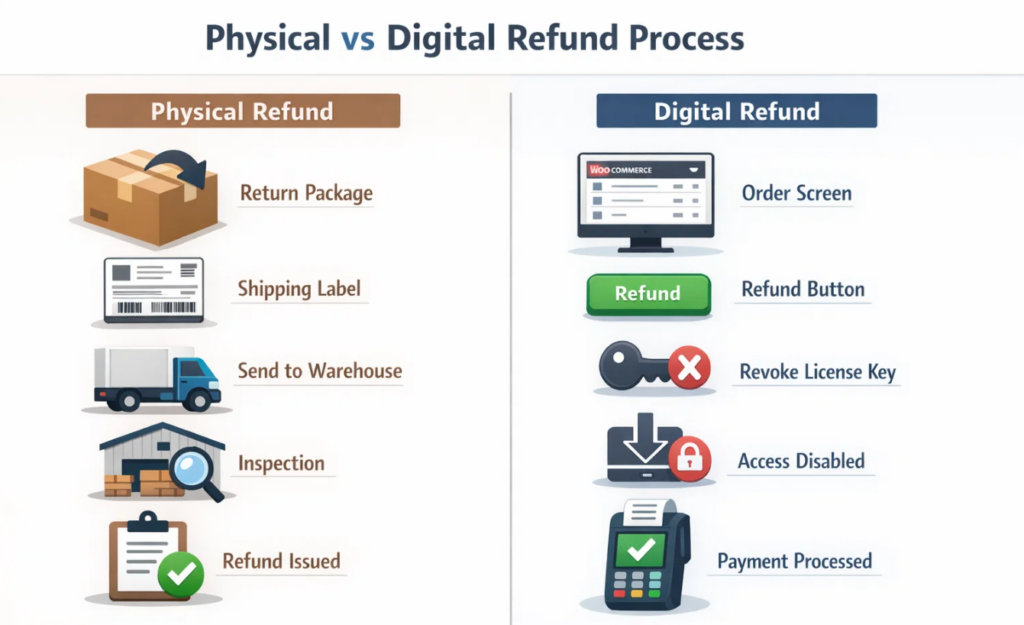
If you sell ebooks, software, courses, or memberships, you need a clear system for refunds and returns for digital products. You can’t ask a customer to return a digital download or a software license once it’s downloaded. Instead, you can focus on revoking download access and handling technical issues.
Customers expect quick handling of refunds and returns for digital products on WooCommerce. Thus, you have to balance customers’ goodwill with the reality that you are selling non-tangible items.
Table of Contents
This guide shows how to implement WooCommerce order refunds with a solid refund policy and the right tools. This will help you automate refunds and returns for digital products on WooCommerce.
Understanding WooCommerce Refund For Digital Products
You need to learn the foundation of refunds and returns for digital products before setting up any policy. You can expect to get back a product from a customer when selling physical products. However, for selling digital products on WooCommerce, you have to rely on building trust with clear policies.
Why Digital Returns Are Different
The traditional return model is obsolete in front of WooCommerce refunds for digital items. Once a digital product is downloaded, your control over that product is limited. Thus, refunds and returns for digital products on WooCommerce focus more on access control.
Here are some common refund triggers:
- Corrupted or incomplete files
- Compatibility issues
- Billing errors
- Accidental purchases
- Subscription auto-renewals
- Product not matching description
Your approach should focus on these triggers and a clear refund policy to reduce customers’ hesitation.
Why WooCommerce Refunds Matter for Digital Products
You can’t ship back digital items like ebooks or software because you can’t reuse them. However, customers will request refunds for reasons such as compatibility issues, errors, or mismatched content.
According to a study by Baymard Institute, complex return policies lead to significant cart abandonment rates. Additionally, 85% of shoppers expect a refund within a week of their request. Slow WooCommerce refund handling leads to chargebacks and costs $100 billion per year due to fraud.
Therefore, you need to define a clear return policy that states when they are eligible for a refund. Plus, it should clearly state the refund window (e.g., 14 or 30 days) and the acceptable reasons for a refund. A transparent WooCommerce refund policy reduces customers’ anxiety during purchase and prevents cart abandonment.
Legal Considerations for Refund in WooCommerce
You must comply with digital content laws when selling WooCommerce products in the EU or the UK.
The EU Digital Content Directive states that customers can lose the 14-day cooling-off period once they obtain digital access through consent.
In the UK, digital products fall under the Consumer Rights Act 2015. This act indicates that a full refund is not available, but a replacement is possible.
However, you need to define the WooCommerce refund policy clearly to avoid confusion. This helps customers make their buying decisions and store owners avoid fraudulent refund requests.
How to Process a WooCommerce Refund Manually
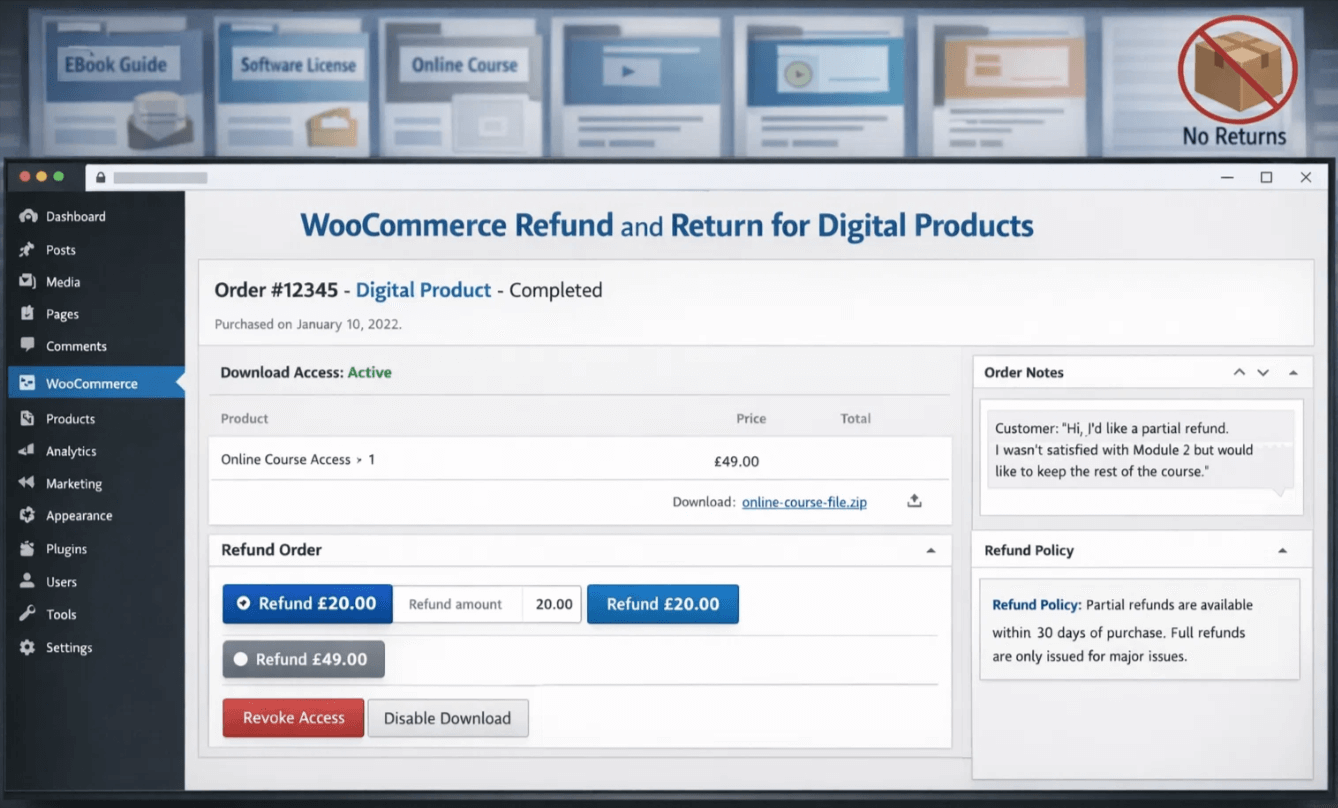
You can easily process a WooCommerce refund by yourself using the WooCommerce dashboard. It offers a built-in WooCommerce order refund system.
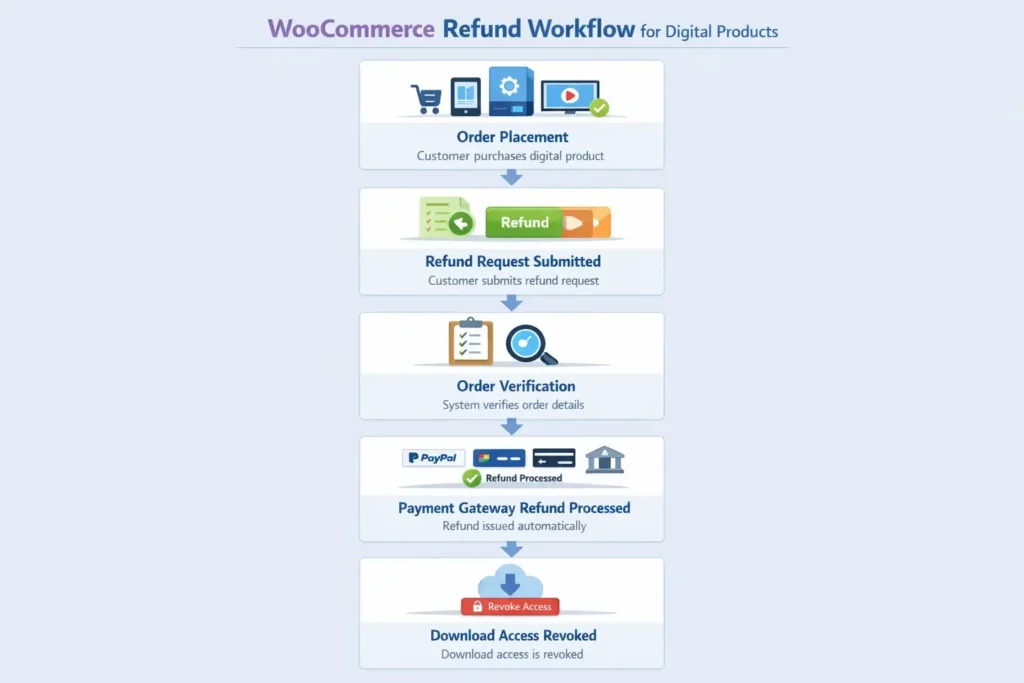
Processing a full refund
To process a full WooCommerce refund, here are the steps to follow:
- Log in to the WordPress dashboard
- Navigate to your WooCommerce dashboard
- Go to Orders and find the relevant order.
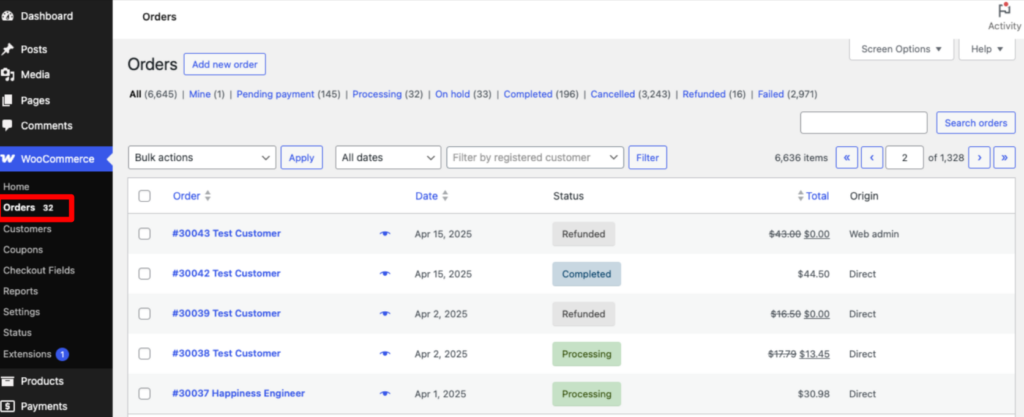
- Click on the order to open the details page.
- Select the specific order.
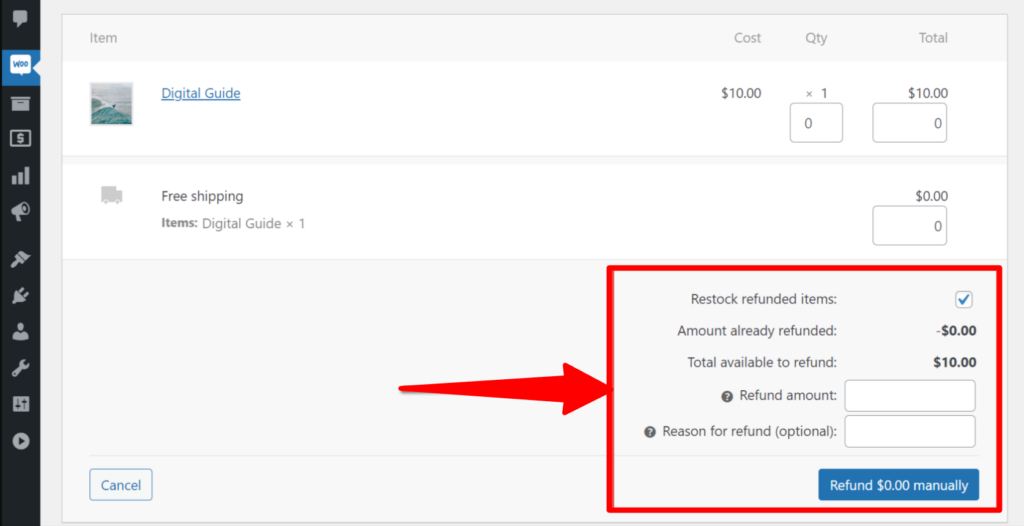
- You will see a Refund button on the right-hand side.
- Click Refund and enter the refund amount.
- Choose the reason behind the refund.
- Click the “Refund $(Given amount) Manually button.
- Select Refund via payment gateway if supported.
Now, WooCommerce will trigger a payment refund from your connected payment gateway. Some of the best payment gateways for WooCommerce include Stripe, PayPal, Apple Pay, Google Pay, and WooPaddle.
However, some payment gateways don’t support API refunds. In that case, you need to refund directly from the payment provider’s dashboard.
Keep in mind that you can either process a full or partial WooCommerce refund for digital products. A partial refund is ideal for selling products in bundles or for partially selling services or products.
Revoking Digital Access
Revoke access to your product after issuing a refund in WooCommerce. Here are the steps to follow:
- Reduce download permissions
- Expire download links
- Deactivate license keys
- Cancel associated subscriptions
The risk of fraud increases when you fail to revoke access to your digital product.
Understanding Refund Timelines
The money leaves your account right away after issuing a WooCommerce refund. However, it doesn’t land immediately on your customer’s account.
The processing time may vary depending on the bank and its region. Therefore, it’s your responsibility to inform your customers that you have processed it instantly. But it may take 5-10 business days for the amount to be credited to their account.
Automating WooCommerce Refund and Exchange Processes
Manual Woocommerce refunds can be a bottleneck for your store if you are handling high sales volume. Thus, you should automate refunds in WooCommerce to ensure customer satisfaction. The aim is to make the process faster and smoother for both the customer and your end.
Here are some scenarios when you should automate refunds:
- You process over 50 orders daily
- You offer low-cost digital products
- The refund window is short and predictable
The latest WooCommerce update supports self-service refunds to automate the refund process. Customers can request refunds from the My Account Page, and you can approve them from Admin.
You can enable this service from Settings > Refunds and set guest verification with email, order number, and date. The WooCommerce refund request appears under WooCommerce > Refund Requests. You can approve the request from here to trigger therefunds and returns for digital products.
Plugins can extend the core features when it comes to refunds and returns for digital products on WooCommerce. Let’s take a look at some of the best WooCommerce refund and exchange plugins.
Return, Refund, and Exchange For WooCommerce
Return, Refund, and Exchange for WooCommerce simplifies the WooCommerce refund system. It adds exchange, wallet, and cancel order features to your WooCommerce store. The plugin also offers a mailing system that keeps the customer and admin on the same page.
Key Features:
- Allows a user limit for refunds.
- Restrict selected users from refunds.
- Allows attachments for refund and exchange.
- Customers can cancel the return request.
- Templates available for refund requests.
- Handles tax efficiently for returns and exchanges.
Price: Starts from $79.00/Year for 1 site.
Smart Refunder for WooCommerce
Smart Refunder for WooCommerce is an official WooCommerce plugin that enables instant refunds. This premium plugin focuses on the pain point behind every refund process for customers and store owners.
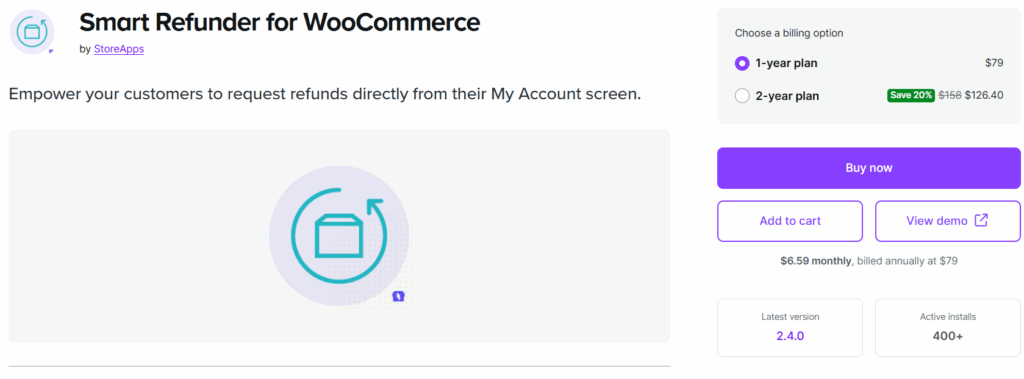
Key Features:
- Allows requesting refunds from My Account.
- Customers get refunds in the shortest possible time.
- Customers can get a full or partial refund upon request.
- Customers and admins get instant email notification of refunds.
Price: Starts from $79.
YITH Advanced Refund System for WooCommerce
The YITH Advanced Refund System for WooCommerce is a powerful WooCommerce refund plugin. It automates and simplifies the refund management in your WooCommerce store. The plugin maintains security and flexibility on every WooCommerce refund. It ensures customer satisfaction, builds trust, and minimizes administrative workflow.
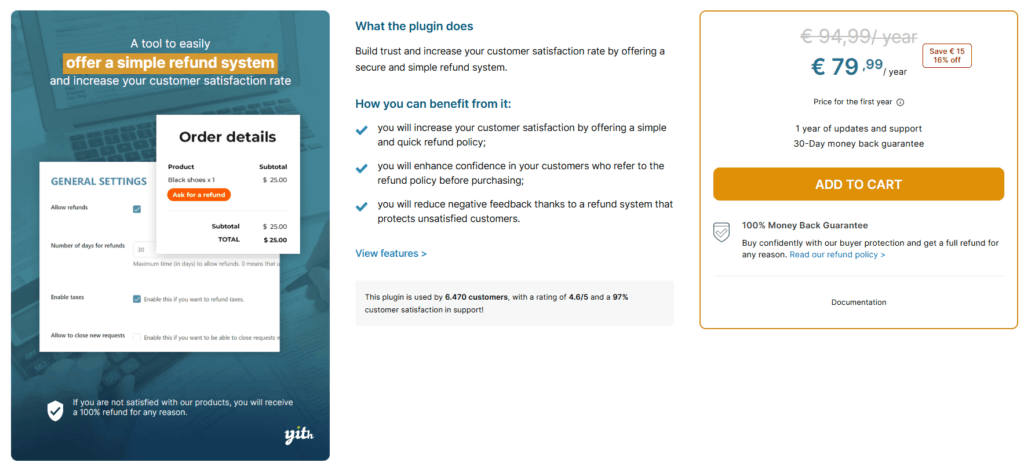
Key Features:
- Quick refund approval and management without any manual intervention.
- Define conditions or refund rules based on order status, payment methods, and more.
- Intuitive refund request form integrated into the WooCommerce interface.
- Customers can track their refund requests from their account.
- Admins can view, approve, or reject WooCommerce refund requests.
Price: Costs € 79,99/ year
Managing WooCommerce Refund for Subscriptions
Processing a WooCommerce refund for a subscription product requires more attention than a one-time purchase. Subscription products include recurring billing and continuous access to digital products. Hence, you must carefully manage both the payment and the subscription status.
Cancel Before Refunding
Always cancel the subscription before issuing a WooCommerce refund for digital subscriptions. Here are the reasons why:
- Cancel recurring payments: Stop future charges through the WooCommerce Subscriptions dashboard.
- Check billing cycle: Identify whether the customer is mid‑cycle or at the start of a new cycle.
- Decide on refund type: Offer either a full refund or a prorated refund, depending on how much of the subscription period has been used.
Handling WooCommerce Refund For Renewals
Refunds and returns for digital products on WooCommerce require additional verification to prevent misuse. Here are the steps to handle renewal charges:
- Confirm billing timestamp: Ensure the renewal payment was recent and within your refund window.
- Verify user activity: Check if the customer accessed premium content or downloads after renewal.
- Refund via gateway: Process the refund directly through your payment gateway (Stripe, PayPal, etc.) to maintain compliance.
- Revoke access immediately: Remove subscription privileges once the refund is issued to prevent unauthorized use.
Why Subscription Refunds Need Extra Attention
Subscription refunds and returns for digital products on WooCommerce get more negative feedback compared to physical products.
Industry data indicates that businesses face $15-$20 from subscription chargebacks and merchant disputes. This is why you should have clear WooCommerce refund policies, automated safeguards, and proactive communication with the customer.
Here are the best practices that you can follow:
- Define transparent rules for subscriptions in your WooCommerce refund policy.
- Use the WooCommerce subscriptions plugin to manage cancellations and refunds.
- Offer credits or discounts as an alternative to a refund to retain customers.
- Monitor refund request patterns to identify fraudulent requests or abuse.
Best Practices for Digital Product Refund in WooCommerce
You need specific strategies to handle fraud and manage exceptions for digital products. You will sometimes face a refund request that falls outside your policy, or it’s a case of foul play.
Preventing Abuse and Fraud
Some customers purchase digital products, download them, and then request a refund without any solid ground.
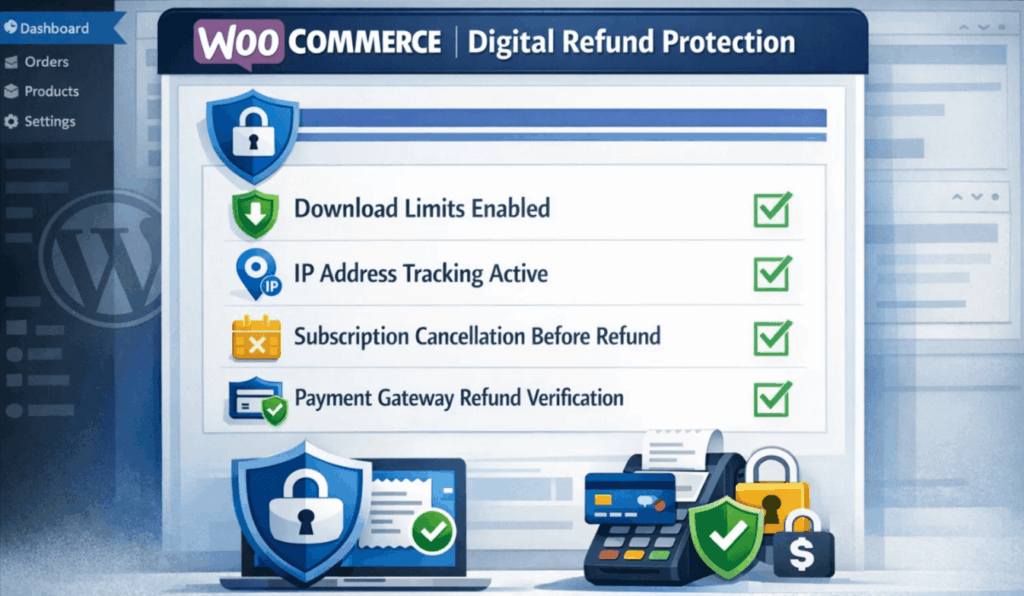
Common Abuse Patterns:
- Purchase and download the digital product instantly
- Request a refund within hours of downloading the product.
- Repeated refunds from the same account.
- Chargeback after refund
Protection Strategies:
- Monitor refund request patterns from specific users or IP addresses.
- Use verification to differentiate real users and bots.
- Use security tools to limit clicks on download links.
- Implement expiration dates on download links.
- Use license key validation on the downloadable product.
Set Clear WooCommerce Refund Windows
Set clear refund windows to minimize and prevent fraud in WooCommerce. Best practices include:
- 7 days for downloads such as e‑books or templates
- 14 days for courses where access is limited or structured
- No refunds after full access to subscription‑based or personalized content
Genuine customers get enough time to evaluate their purchase, even if the window is shorter.
Limit Downloads
WooCommerce lets you put download restrictions for specific products. This prevents customers from downloading the same file multiple times and then requesting refunds.
- Set a download limit count (e.g., 3 downloads per file)
- Define an expiry period (e.g., links valid for 7 days)
- Generate unique download links for each customer
With download limits, you can ensure that only genuine customers are placing refund requests.
Track Usage Before Approving Refund
Check the product usage before approving refunds and returns for digital products on WooCommerce. WooCommerce and any refund plugins let you monitor the following criteria:
- Number of downloads per customer
- Login activity on membership sites
- License activation for software products
- IP logs to detect multiple downloads from different devices.
We recommend that you manually review the request when usage data shows heavy consumption.
Manage Expectations and Appeals
You must deny some WooCommerce refund requests based on their criteria and your policy. However, you need to create a clear appeals process for these situations.
Redirect customers to a specific contact method when a customer ensures that their situation is unique. Train your support to communicate your decision empathetically but firmly. They should handle every WooCommerce refund request on a a case-by-case basis.
Sometimes, you can honor a refund outside your defined refund window to keep a customer. On the other hand, being firm with your policy is essential for maintaining boundaries.
Legal and Tax Considerations
Processing a WooCommerce refund comes with legal and tax implications related to the refunds.
Don’t overlook the tax issues while issuing a WooCommerce refund. You must reverse the transaction, including the tax factors.WooCommerce automatically handles tax calculations for most of the payments and refunds.
However, you must check this calculation while using any other payment gateway. WooPaddle is a specialized paddle payment gateway known for accurately selling digital products and handling tax calculations. It complies with all applicable local consumer protection laws regarding digital goods.
In many regions, customers have specific rights regarding digital content. You should rely on a payment gateway that handles all the tax calculations on your behalf.
Excellent Customer Support
Customer support quality is the key to the success of your WooCommerce store. Your support should proactively respond to every WooCommerce refund request.
Your support team should communicate with customers emphatically. It helps to transform a negative conversation into a positive one. Before refunding, the support team can offer alternatives like:
- Provide an updated file if the original file is corrupted.
- Offer technical support to address any compatibility issues.
- Suggests store credit for further purchases in the future.
- Recommend alternative products or added services.
According to industry data, you can regain 20% of refunds by offering alternatives in digital product stores.
Continuous Improvement
Analyze WooCommerce refund data regularly to find out the scope of improvements. Customers aren’t asking for refunds without any reason. Identify the actual reason for the return or refund request.
Use your customer feedback to improve your product description, technical documentation, or the product itself. Additionally, update the policy annually to ensure it aligns with industry standards and your business agenda.
Consistent evaluation helps you develop a better approach to satisfying your customers.
Conclusion
Managing WooCommerce refunds for digital products requires a combination of automation and personal support.
You need to state a clear policy on refunds and returns for digital products on WooCommerce. It should clearly state the refund terms, the deadline, and proper instructions.
With that, you need to use the WooCommerce refund and exchange plugin to satisfy your customers. Plugins add features that the default WooCommerce store doesn’t provide for digital product refunds.
Start by improving your current WooCommerce refund policy and gradually implement automated workflows. Keep in mind that a strong WooCommerce payment refund leads to fewer disputes and repeat sales.
Recommended Articles (Optional)
If you enjoyed this article, check out some of our other useful articles, where we share tips and tactics to grow your WooCommerce store and rate it from 0 to 100.
Here are a few you might find interesting:
10 Fastest One Page Checkouts for WooCommerce Plugins (2026 Edition), where we have curated a list of the 10 best one-page checkouts for WooCommerce. These plugins reduce the checkout distractions and create a smooth user experience.
WooCommerce Instant Checkout: Sell Faster and Boost Conversions, where we have shown how WooCommerce instant checkout minimizes every extra field, page load, and click.
Is FastSpring Legitimate? How it Compares to WooPaddle for Secure Payments, where we have shown the legitimacy of the FastSpring payment platform when compared to the WooPaddle payment gateway.
Best Paddle Integration for WooCommerce: WooPaddle vs PaddlePress, where we will compare two of the best payment platforms in WooCommerce.

 SHAMIM HASAN