Set Up Paddle Payment - CodePopular
To continue, make sure your WooPaddle License is active. This premium plugin requires a valid license, and all features remain locked until activation.
Once activated, you’ll enjoy the full power of WooPaddle without any limitations.
Step 1: Enable And Configure Plugin Settings
- Log in to your WordPress Admin Dashboard.
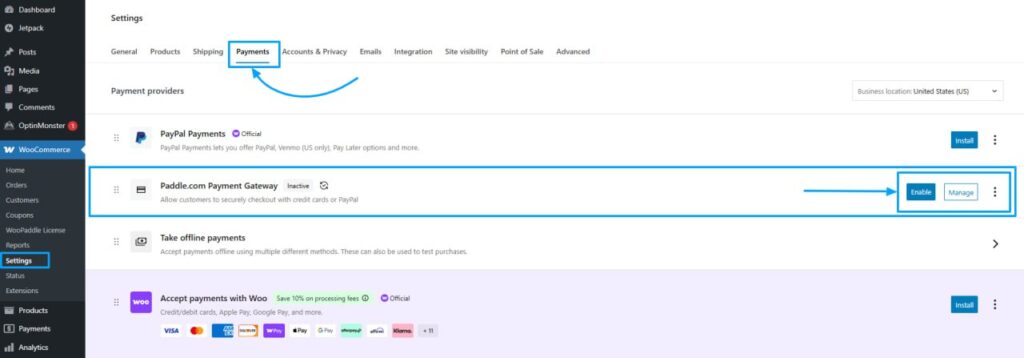
- Navigate to WooCommerce → Settings → Payments
- Find Paddle.com Payment Gateway in the list
- Click Enable or Manage to configure the payment gateway
OR
- Go to your WordPress Admin Dashboard.
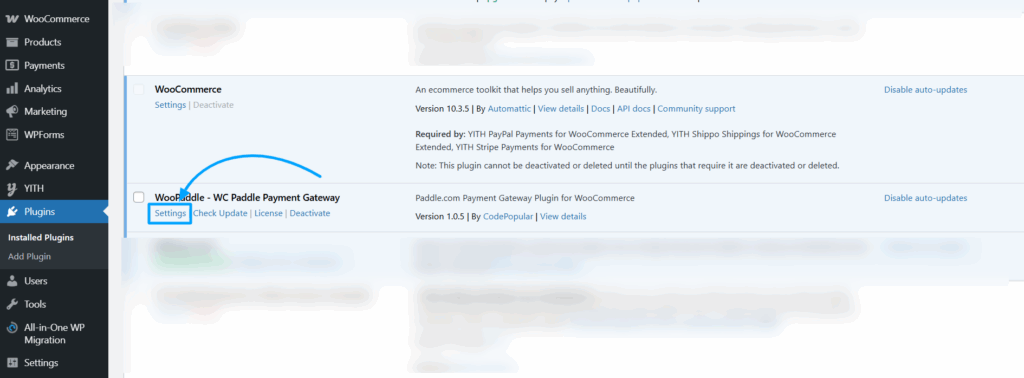
- Navigate to Plugins → Installed Plugins.
- Find the Woopaddle plugin in the list.
- Click on Settings under the plugin to open the WooPaddle configuration page.
- After clicking on the Settings option, you will be directed to the configuration page.
Step 2: Configure the General Settings
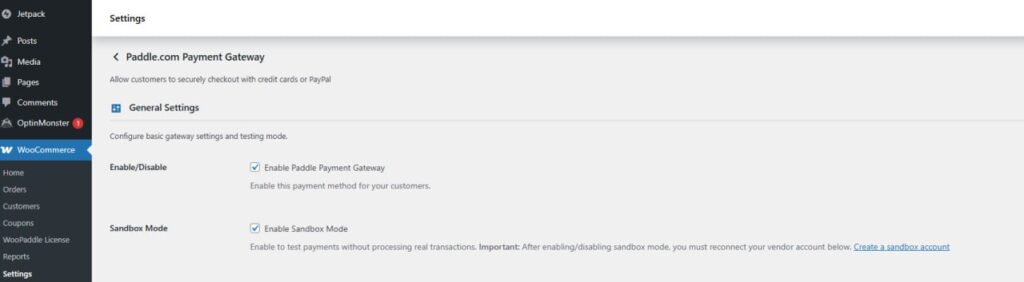
After enabling the WooPaddle plugin and accessing the configuration page, you will see the General Settings section for the Paddle.com Payment Gateway. This section allows you to control the basic behavior of the gateway, including enabling the payment method and switching between Live and Sandbox modes.
1. Enable/Disable Paddle Payment Gateway
Option: ✅ Enable Paddle Payment Gateway
This toggle activates the Paddle payment method for your WooCommerce store.
When enabled:
- Customers will be able to pay using credit cards, PayPal, Apple Pay, and other Paddle-supported payment methods.
- Paddle Checkout will appear during the WooCommerce checkout process.
If disabled, Paddle will not appear as a payment option at checkout.
2. Sandbox Mode
Option: ✅ Enable Sandbox Mode
Sandbox Mode allows you to test the checkout process without processing real transactions.
When Sandbox Mode is enabled:
- All payments are handled through Paddle’s Sandbox environment.
- You can safely test purchases, refunds, and subscription flows.
Important:
After turning Sandbox Mode ON or OFF, you must reconnect your vendor account in the gateway settings to ensure the correct environment (Live or Sandbox) is linked.
If you do not have a sandbox account, you can create one using the link provided:
Create a Paddle Sandbox Account
What Happens After Configuring These Settings?
Once you adjust these two options:
- Click Save Changes at the bottom of the page.
- Your WooPaddle gateway will be updated based on the selected mode and availability.
- You can continue to configure advanced settings, such as API Configuration, Webhooks, Checkout Display, Product Settings, and Advanced Settings.
Follow the next page to configure the Set Up Paddle Payment With (Paddle Classic)
 SHAMIM HASAN