Set Up Paddle Payment (Paddle Classic) - CodePopular
🚀 Before You Begin
To get started, you must have a Paddle account that is fully verified. This ensures that all plugin features work seamlessly and without interruptions.
If you don’t have an account yet, visit Paddle’s official Registration page, create your account, and complete the verification process. Once verified, you’ll be ready to unlock the full potential of the WooPaddle plugin and enjoy a smooth, hassle-free experience.
Step 1: Get Your Paddle Credentials
Before configuring the plugin, you need to obtain your Paddle credentials:
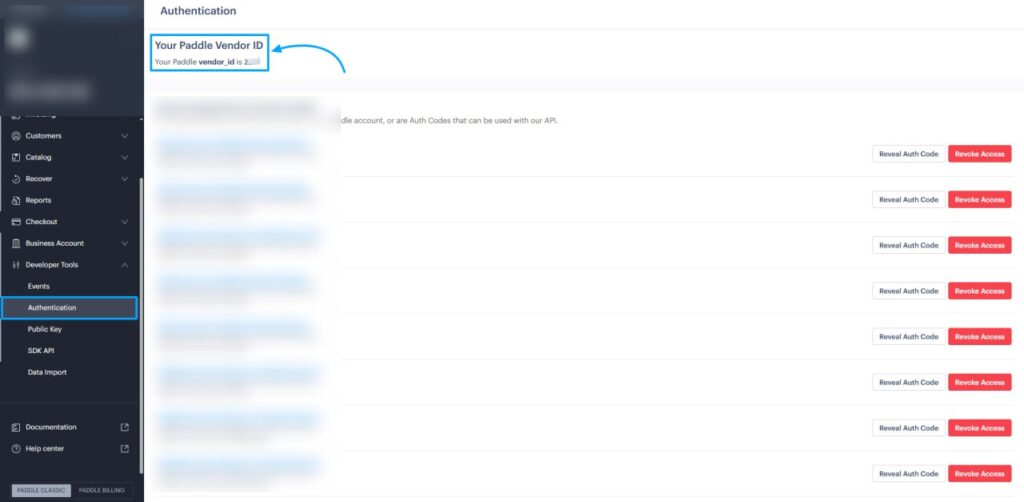
1. Get the Paddle Vendor ID
- Log in to your Paddle Vendor Dashboard
- Navigate to Account → Authentication
- Copy your Paddle Vendor ID (numeric value)
2. Get the Paddle API key
- Go to your Paddle Vendor Dashboard
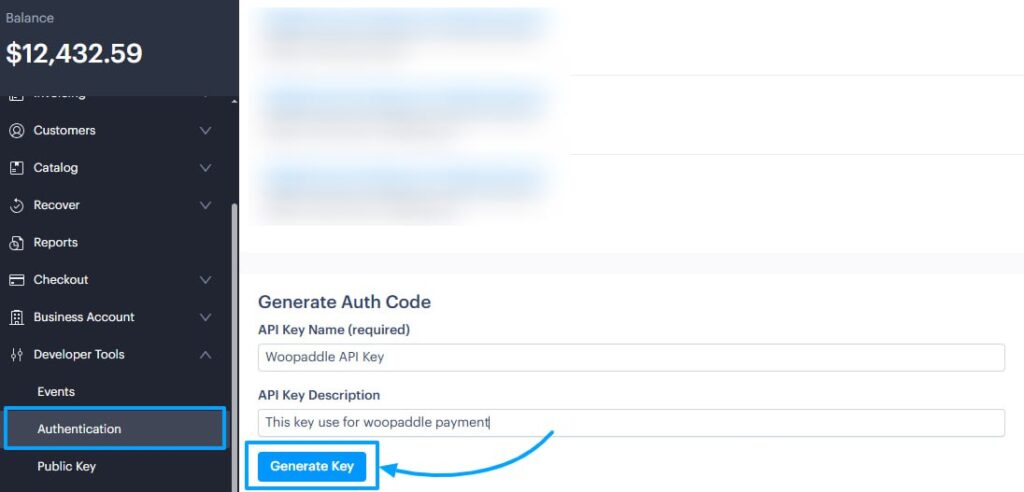
- Navigate to Account → Authentication
- In The Authentication Page, Go Down to Generate the Auth Code
- Put an API Key Name (required) and API Key Description
- Click On the Generate API Button
- After clicking the button, your API key will be generated in a pop-up
- Copy your API Key (long alphanumeric string)
Step 2: Set Up Paddle Credentials
After obtaining your Vendor ID and API Key from your Paddle account, you can now integrate Paddle with your WooCommerce store using the WooPaddle plugin. Follow the steps below to complete the setup.
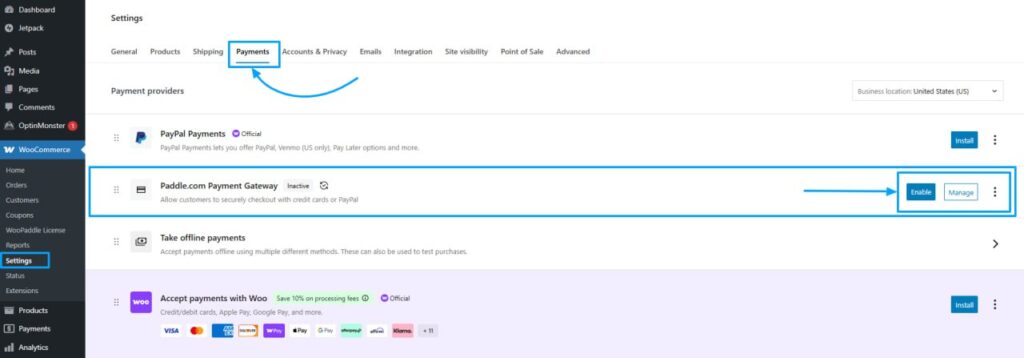
1. Open the WooPaddle Settings Page
- Log in to your WordPress Admin Dashboard.
- Navigate to WooCommerce → Settings → Payments
- Find Paddle.com Payment Gateway in the list
- Click Manage to configure the payment gateway
This will open the main configuration area for the Paddle payment gateway.
2. Select the Paddle API Type
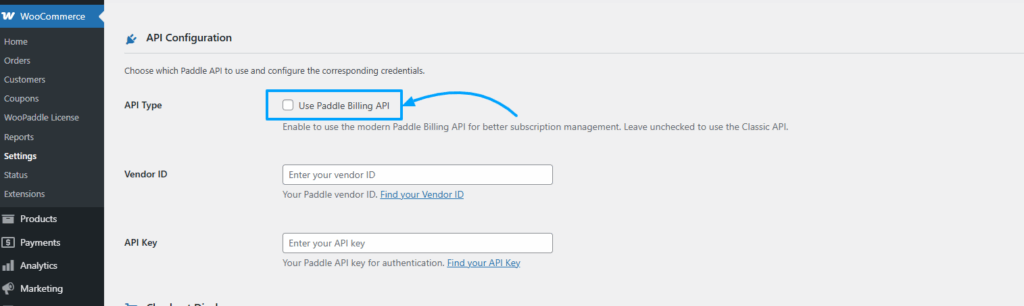
In the API Configuration section, you will see the option:
API Type → Use Paddle Billing API
- Leave this option unchecked
This ensures the plugin uses the Paddle Classic API, which is recommended for classic checkout, one-time payments, and standard Paddle workflows.
3. Enter Your Paddle Credentials (Vendor ID & API Key)
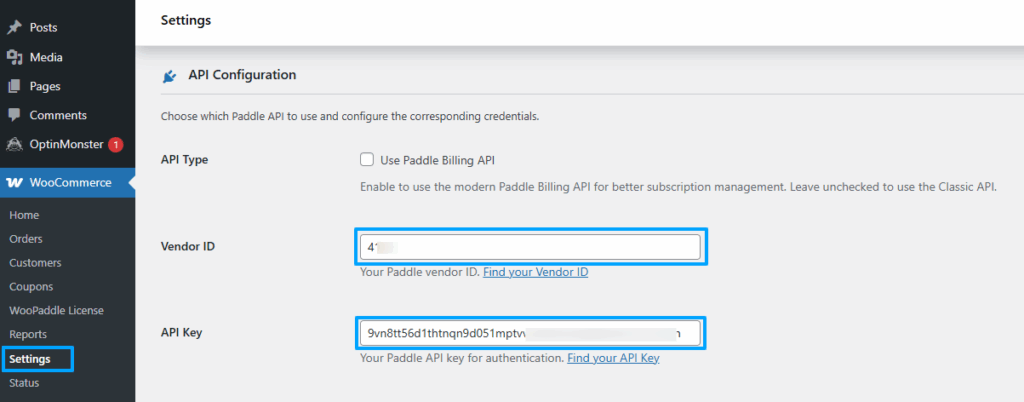
In the API Configuration section, you will need to provide the two required Paddle credentials:
Vendor ID & API Key
Paste both of the following details that you previously copied from your Paddle account:
- Vendor ID – Identifies your Paddle vendor profile and links WooPaddle with your Paddle business account.
- API Key – Authenticates your WooCommerce store and allows WooPaddle to communicate securely with the Paddle Classic API.
Make sure both values are correct. Incorrect or incomplete credentials will prevent payments from being processed.
4. Configure Paddle Classic INS (Instant Notifications)
To receive payment notifications from Paddle, you must set up a webhook in your Paddle account.
- In the configuration page → Go Down → You will see the webhook URL
- Copy the webhook URL

5. Add the webhook URL with Paddle
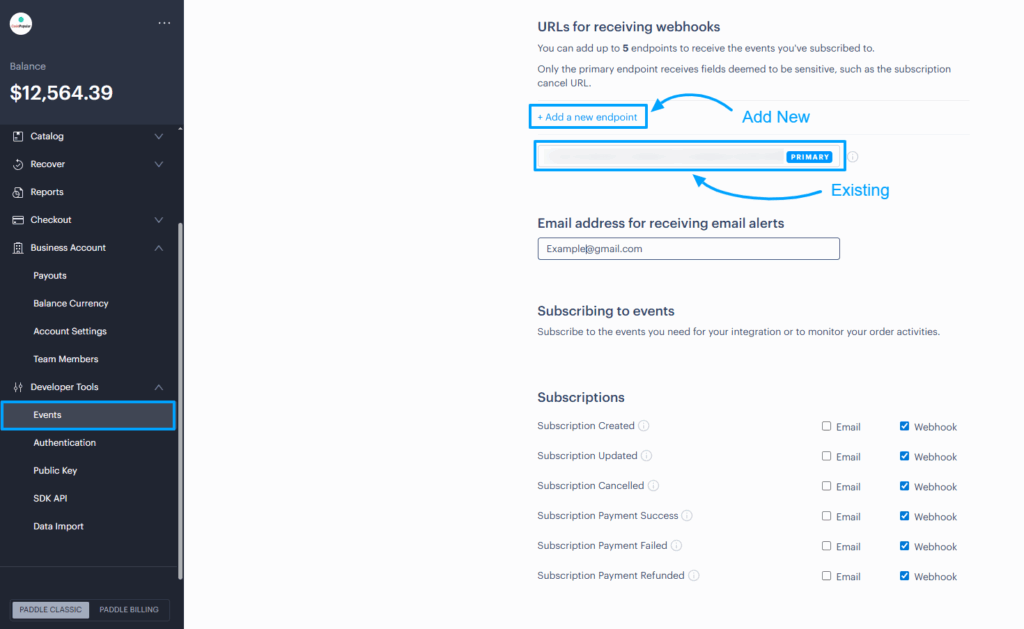
- Go to your Paddle Vendor Dashboard
- Navigate to Account → Events→ URLs for receiving webhooks
- Paste the webhook URL in the primary field, OR Add a new endpoint
- Select the following events to listen for:
payment_succeededpayment_refundedsubscription_createdsubscription_updatedsubscription_cancelledsubscription_payment_succeededsubscription_payment_failed- Save the webhook
6. Save Your Configuration
Scroll down and click → Save Changes
Your Paddle Classic credentials are now stored and active within WooPaddle.
 SHAMIM HASAN