How to Make WordPress Media Library Graphical Statistics
The WordPress Media Library stores every image, video, audio file, PDF, and document you upload. But by default, WordPress does not show visual analytics or usage graphs. If you want to understand how many files you upload monthly, which media types you use most, or how your storage grows over time, you need WordPress media library graphical statistics.
🚀 Why Add WordPress Media Library Graphical Statistics?
📊 Media Analytics Overview
There are many reasons to add graphical statistics to the media library. If you understand the workflow of your WordPress media in a graph, you can easily gauge your site’s health. Graph analytics provide a visual understanding of key media metrics within your content system:
- Total number of images, videos, audio, and documents
- Monthly upload trends
- File type distribution
- Storage usage reports
- Media performance over time
📈 Who Benefits Most from Graphical Statistics?
In general, every WordPress website should have a graphical interface to easy to understand. As WordPress by default doesn’t provide any advanced graphical interface for site health so it’s tough to know the media library statistics. Graphical statistics are especially useful for:
- ✔ Bloggers
- ✔ WooCommerce store owners
- ✔ News/media portals
- ✔ Agency websites
- ✔ Heavy content websites
Now hope you get the concept of the WordPress media library graphical statistics and why it is important for a WordPress website, and also describe the benefits of WordPress media library graphical statistics.
How to Display Graphical Statistics for the WordPress Media Library
There are several ways to show graphical statistics for your WordPress media library. You can either add custom code to your site or use a plugin like EasyMedia, which provides a simple and effective way to visualize your media library statistics. Here is the step-by-step guide. Follow those steps
Custom Code Guide Here
🧩 Step 1: Fetch Media Library Data Using WP_Query
To build the graph, first collect Media Library data in PHP.
function wpmg_get_media_stats() {
    $args = [
        'post_type'      => 'attachment',
        'post_status'    => 'inherit',
        'posts_per_page' => -1,
    ];

    $media = get_posts($args);

    $stats = [
        'image' => 0,
        'video' => 0,
        'audio' => 0,
        'other' => 0,
        'monthly' => []
    ];

    foreach ($media as $file) {
        $type = get_post_mime_type($file->ID);

        if (strpos($type, 'image') !== false) $stats['image']++;
        elseif (strpos($type, 'video') !== false) $stats['video']++;
        elseif (strpos($type, 'audio') !== false) $stats['audio']++;
        else $stats['other']++;

        $month = date("Y-m", strtotime($file->post_date));
        if (!isset($stats['monthly'][$month])) {
            $stats['monthly'][$month] = 0;
        }
        $stats['monthly'][$month]++;
    }

    return $stats;
}
This function collects:
- File type counts
- Monthly uploads
- Total media usage pattern
🧩 Step 2: Send Data to JavaScript
To render the charts, pass the data to JS using wp_localize_script():
function wpmg_localize_media_stats() {
    wp_enqueue_script('wpmg-chart', plugins_url('/chart.js', __FILE__), ['jquery'], '1.0', true);

    wp_localize_script('wpmg-chart', 'wpmg_media_stats', [
        'stats' => wpmg_get_media_stats()
    ]);
}
add_action('admin_enqueue_scripts', 'wpmg_localize_media_stats');
Now the stats are available in JavaScript globally as:
wpmg_media_stats.stats;
🧩 Step 3: Create Graphical Charts using Chart.js
In your admin page, add the chart container:
<canvas id="mediaChart" style="max-width:700px"></canvas>
Then load the graph:
document.addEventListener(“DOMContentLoaded”, function () {
const ctx = document.getElementById('mediaChart');

new Chart(ctx, {
    type: 'bar',
    data: {
        labels: Object.keys(wpmg_media_stats.stats.monthly),
        datasets: [{
            label: 'Uploads Per Month',
            data: Object.values(wpmg_media_stats.stats.monthly),
        }]
    }
});
});
This generates a beautiful monthly upload chart.
🧩 Step 4: Add File Type Pie Chart (Images, Videos, Audio, Other)
<canvas id="typeChart" style="max-width:500px"></canvas>
new Chart(document.getElementById('typeChart'), {
    type: 'pie',
    data: {
        labels: ['Images', 'Videos', 'Audio', 'Other'],
        datasets: [{
            data: [
                wpmg_media_stats.stats.image,
                wpmg_media_stats.stats.video,
                wpmg_media_stats.stats.audio,
                wpmg_media_stats.stats.other
            ]
        }]
    }
});
🧩 Step 5: Add an Admin Menu Page for the Dashboard
add_action('admin_menu', function () {
    add_menu_page(
        'Media Analytics',
        'Media Analytics',
        'manage_options',
        'media-analytics',
        'wpmg_render_admin_page',
        'dashicons-chart-bar'
    );
});

function wpmg_render_admin_page() {
    echo '<h2>WordPress Media Library Graphical Statistics</h2>';
    echo '<canvas id="mediaChart"></canvas>';
    echo '<canvas id="typeChart"></canvas>';
}
Using EasyMedia to Display Graphical Statistics for Your WordPress Media Library
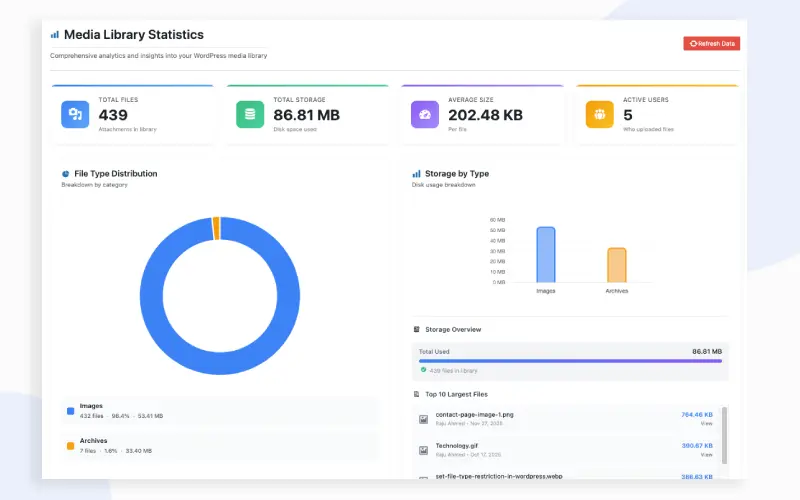
Managing media files is a major part of running any WordPress website. Whether you upload images, videos, audio, or documents, it’s important to know how much space you’re using and what types of files you have. This is where EasyMedia, a simple and user-friendly WordPress plugin, becomes incredibly helpful.
EasyMedia provides a clean dashboard that turns your entire media library into easy-to-understand visual statistics. Instead of guessing what’s taking up space, you get a clear picture of your media usage instantly.

What EasyMedia Shows You
Once installed, EasyMedia automatically scans your media library and displays useful information such as:
✔ Total Media Files
Know exactly how many images, videos, audio files, and documents you have uploaded.
✔ Total Storage Used
See how much disk space your media files are consuming on your server.
✔ Average File Size
Understand the typical size of your uploaded files, which helps with storage planning.
✔ Active Upload Users
Check how many users have contributed to the media library.
Visual Charts for Better Understanding
EasyMedia includes beautiful and informative charts that make your media data easy to analyze:
- File Type Distribution Chart
Shows how much of your media library consists of images, videos, audio, or archives. - Storage by Type Graph
Helps you identify which types of files are using the most disk space. - Storage Overview Bar
A quick visual summary of total media size. - Top 10 Largest Files List
Easily spot the biggest files that may be slowing down your site.
These visuals make it much easier to manage your storage and maintain an optimized website.
Why EasyMedia Is Worth Using
EasyMedia is perfect for bloggers, business owners, photographers, and anyone who wants better control over their media library. It saves time, improves workflow, and helps you keep your website fast and organized.
With just a quick installation, you get a complete visual breakdown of your media library without needing any technical experience.
You now have a complete graphical analytics dashboard inside WordPress
🎉 Final Output: What You Get
After completing the steps, your WordPress admin will show:
✔ Monthly media upload chart
✔ File type distribution (Pie Chart)
✔ Visual insights for images, videos, audio & documents
✔ A sleek Analytics Dashboard tab in admin
✔ Real-time Media Library statistics
This is perfect for improving site management, optimizing storage, and understanding content trends.
❓ Frequently Asked Questions (SEO Boost)
1. Can I show WordPress Media Library Analytics without a plugin?
Yes. Using WP_Query to gather data and Chart.js for visualization, you can build your own custom graphical analytics dashboard directly within the WordPress admin area.
2. Which chart library works best for WordPress?
Chart.js is highly recommended. It’s lightweight, responsive, and perfectly suited for displaying clear, modern statistics right in the WordPress admin dashboard.
3. Will this slow down my website?
No — this solution will not impact your website’s frontend performance. All the analytics processing and display scripts run exclusively in the WordPress admin area for logged-in users only.
4. Can I turn this into a plugin?
Yes! The code structure, leveraging core WordPress functions and a charting library, can be easily organized and structured to function as a standalone WordPress plugin, EasyMedia.
Useful Tool Recommendation (Optional)
If you’re looking for an easy way to increase or manage your WordPress upload file size limit, you may find this plugin helpful:
👉 WP Maximum Upload File Size
This free plugin lets you quickly check and increase the maximum upload size on your WordPress site without editing any server files. It’s simple, user-friendly, and great for anyone who regularly uploads large media files. Check the EasyMedia free plugin
If you’re looking to improve the way you manage uploads and maintain better control over your WordPress media library, I highly recommend checking out this related guide:
Recommendation Article If You Like To Read (Optional)
Controlling the types of files users can upload is essential for keeping your WordPress site secure, fast, and well-organized. By default, WordPress only accepts common file types like JPG, PNG, PDF, and DOCX — but in many cases, you might need to allow or restrict additional formats.
This guide walks you through why file type restrictions matter and how you can set them up properly.

 SHAMIM HASAN