Set upload limit by role in WordPress - EasyMedia
You can control WP media with a set upload limit by role in WordPress efficiently. Managing file uploads in WordPress is essential—especially if you run a multi-author site, membership site, LMS, agency panel, or client dashboard. By default, WordPress sets one global upload limit, but sometimes you need different limits for different user roles. Follow the step to Set upload limit by role in WordPress.
What Are User Roles in WordPress?
WordPress user roles help you control exactly what each user can and cannot do on your website. When someone registers on your site, WordPress automatically assigns them a specific role, which determines their permissions and capabilities.
A user role is essentially a collection of permissions that define the actions a user is allowed to perform. WordPress comes with five default user roles:
1. Administrator
The Administrator role has the highest level of access on a standard WordPress installation. Admins can create, edit, and delete any posts, manage themes and plugins, create new users, and change site settings.
2. Editor
Editors have full control over all content-related areas. They can create, edit, publish, or delete any posts or pages, including those written by other users.
3. Author
Authors can write, edit, and publish their own posts. They can also delete their own content, even after it has been published. However, they cannot modify posts created by others.
4. Contributor
Contributors can write and edit their own posts, but they cannot publish them. Their posts must be reviewed and published by an Editor or Administrator.
5. Subscriber
Subscribers have the most limited access. They can log in, manage their profile, and update their password, but cannot create or edit content.
Why Set Upload Limit By Role in WordPress?
Customizing upload limits helps you:
✔ Prevent server storage from filling up
✔ Control file types and sizes users upload
✔ Improve site performance
✔ Increase security
✔ Restrict lower roles while keeping admins flexible
Method 1: Set Upload Limit by Role Using Code (Recommended)
There are many ways to Set Upload Limit By Role in WordPress. You can add a simple snippet to your child theme’s functions.php file or use a plugin like Code Snippets. And have plugin solution to Set upload limit by role in WordPress follow the steps.
Step 1: Add this Code Snippet
function custom_role_based_upload_size( $size ) {

    // Get current user
    $user = wp_get_current_user();

    // Define sizes in bytes
    $admin_limit    = 64 * 1024 * 1024; // 64MB
    $editor_limit   = 20 * 1024 * 1024; // 20MB
    $author_limit   = 5 * 1024 * 1024;  // 5MB
    $subscriber_limit = 0; // No upload

    // Apply limits by role
    if ( in_array( 'administrator', $user->roles ) ) {
        return $admin_limit;
    }

    if ( in_array( 'editor', $user->roles ) ) {
        return $editor_limit;
    }

    if ( in_array( 'author', $user->roles ) ) {
        return $author_limit;
    }

    if ( in_array( 'subscriber', $user->roles ) ) {
        return $subscriber_limit;
    }

    return $size; // Default fallback
}

add_filter( 'upload_size_limit', 'custom_role_based_upload_size' );
Step 2: Save and Test
Go to:
📍 Media → Add New
Try uploading files under different logged-in roles.
You’ll see the size limit changes depending on the role.
Method 2: Use a Plugin (No Coding Required)
If you are not a WordPress expert but you want to Set upload limit by role in WordPress, then you can simply add an extension to your site. Plugins that offer upload control:
EasyMedia – WordPress Increase Upload Limit by Role and Global
Among many plugins, you can install the EasyMedia plugin, which will help you to increase the upload file size, upload big files in WordPress, and increase upload execution time & memory limit for your site and also Set Upload Limit By Role in WordPress.
Steps:
- Install the plugin – You can download the plugin here. https://wordpress.org/plugins/wp-maximum-upload-file-size
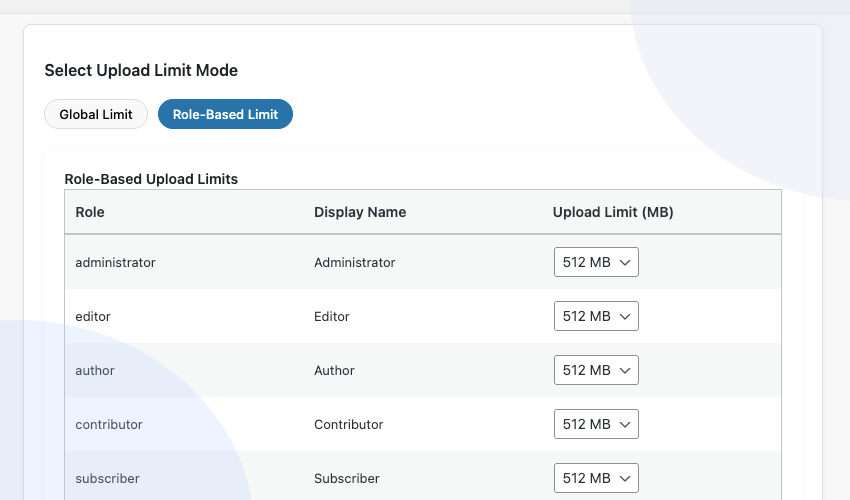
- Go to Media -> EasyMedia
- You can set the upload limit globally or by role in the plugin settings
- Set maximum upload size
- Save
This is perfect if you’re not comfortable editing code. If you want to get the advanced feature of the EasyMedia plugin, then try the EasyMedia Pro version, which is a lifesaver for you. EasyMedia one of the best feature is Set upload limit by role in WordPress.
Bonus: Set Upload Limit by Role + File Type
If you want Set upload limit by role in WordPress or other restrictions like:
- Authors can upload images only
- Editors can upload PDFs
- Admins can upload everything
Use this snippet:
function custom_mime_types_by_role( $mimes ) {

    $user = wp_get_current_user();

    if ( in_array( 'author', $user->roles ) ) {
        return array(
            'jpg|jpeg|png' => 'image/jpeg',
            'png'          => 'image/png',
        );
    }

    if ( in_array( 'editor', $user->roles ) ) {
        return array(
            'pdf' => 'application/pdf',
            'jpg|jpeg|png' => 'image/jpeg',
        );
    }

    return $mimes; // admins & others default
}

add_filter( 'upload_mimes', 'custom_mime_types_by_role' );
Troubleshooting Upload Limit Not Changing
If the upload limit doesn’t update:
✅ Check hosting limits (php.ini)
Ensure these values are high enough:
upload_max_filesize
post_max_size
memory_limit
✅ Clear cache
Cloudflare or plugin cache can block changes.
✅ Disable conflicting plugins
Security plugins may override upload settings.
Final Thoughts
Managing upload limits by user role gives you far more control over how your WordPress site handles media—especially when multiple people contribute content. Instead of relying on WordPress’s single global limit, you can create a smarter, more secure workflow where each role gets exactly the permissions they need. Set upload limit by role in WordPress using EasyMedia.
Whether you’re running a multi-author blog, a membership site, a client portal, or an LMS, setting different upload limits helps you:
- Prevent storage misuse
- Maintain consistent quality
- Keep your site fast and secure
- Give each user a tailored experience
By understanding how to Set upload limit by role in WordPress and assigning upload rules accordingly, you create a balanced environment where users have freedom—but within safe and manageable limits. This approach ultimately leads to a more organized, efficient, and professional WordPress website.
Useful Tool Recommendation (Optional)
If you’re looking for an easy way to increase or manage your WordPress upload file size limit, you may find this plugin helpful:
👉 WP Maximum Upload File Size
This free plugin lets you quickly check and increase the maximum upload size on your WordPress site without editing any server files. It’s simple, user-friendly, and great for anyone who regularly uploads large media files. Check the EasyMedia free plugin
If you’re looking to improve the way you manage uploads and maintain better control over your WordPress media library, I highly recommend checking out this related plugin EasyMedia
Recommendation Article If You Like To Read (Optional)
Controlling the types of files users can upload is essential for keeping your WordPress site secure, fast, and well-organized. By default, WordPress only accepts common file types like JPG, PNG, PDF, and DOCX — but in many cases, you might need to allow or restrict additional formats.
This guide walks you through why file type restrictions matter and how you can set them up properly.

 SHAMIM HASAN