We offer complete installation support, so you don’t have to spend time reading documentation or handling the setup process yourself. If you can provide temporary access to the website where you want the Paddle Checkout plugin installed, our team will assist you immediately and handle the full setup for you.
WooPaddle is a powerful payment gateway plugin that integrates Paddle.com with WooCommerce, allowing you to accept payments via credit cards and PayPal through Paddle’s secure checkout system.
Requirements
WordPress: Version 5.0 or higher
WooCommerce: Version 3.0 or higher
PHP: Version 8.2 or higher
Paddle Account: Active Paddle.com vendor account
Supported Currencies: USD, GBP, or EUR (your WooCommerce store currency must be one of these)
Installation Steps
Step 1: Download the Plugin
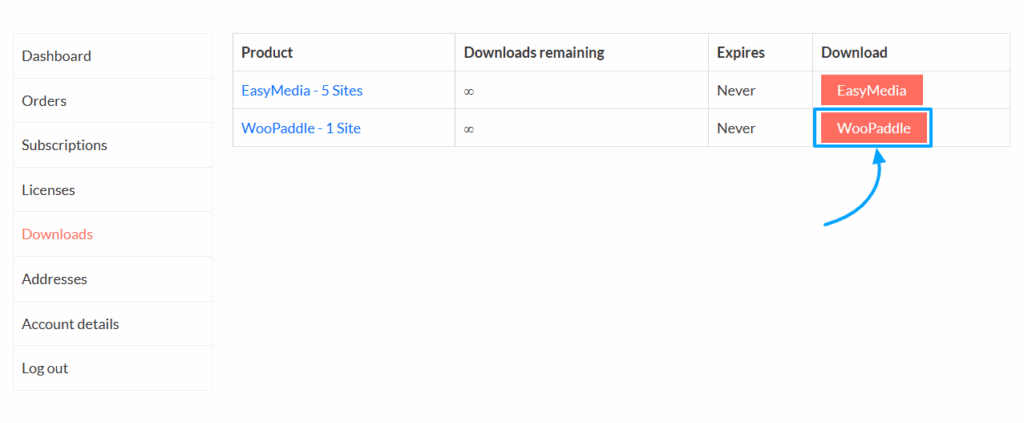
Purchase and download the WooPaddle plugin from CodePopular.com -> My Account -> Download
You will receive a ZIP file containing the plugin
Step 2: Install via WordPress Admin
After downloading the plugin
Log in to your WordPress admin dashboard
Navigate to Plugins → Add New
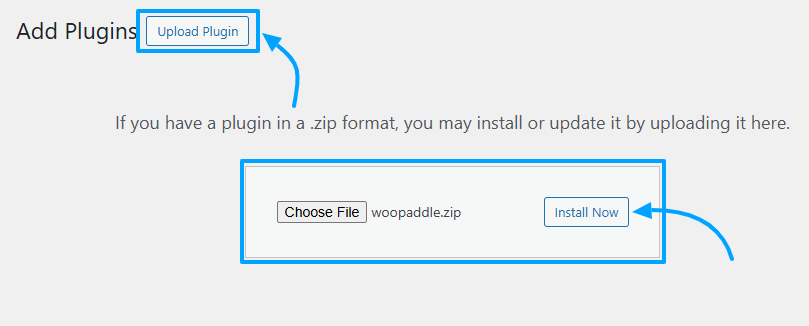
Click the Upload Plugin at the top of the page
Click Choose File and select the woopaddle.zip The file you downloaded
Click Install Now
After installing the plugin, you can activate it
OR
Install via FTP (Alternative Method)
Extract the woopaddle.zip file to your computer
Connect to your website via FTP using an FTP client (FileZilla, etc.)
Navigate to /wp-content/plugins/ directory
Upload the extracted woopaddle folder to this directory
Go to your WordPress admin dashboard
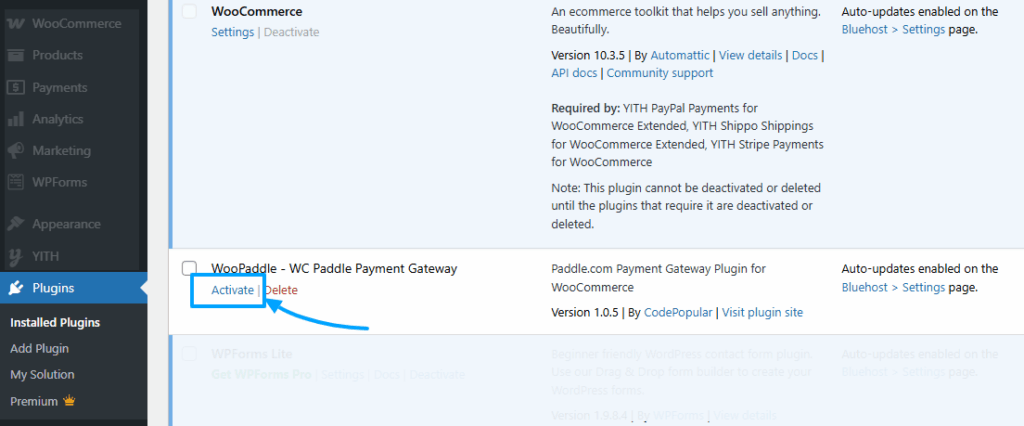
Navigate to Plugins → Installed Plugins
Find WooPaddle – WC Paddle Payment Gateway and click Activate
Step 3: Active WooPaddle Plugin
Once the plugin has been installed:
Navigate to the Plugins section in your WordPress dashboard.
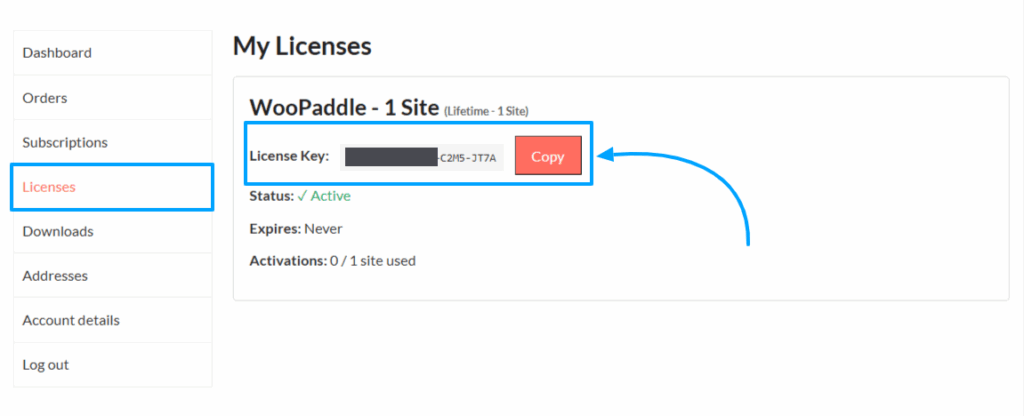
From the left sidebar, navigate to My Account → Licenses.
Locate your WooPaddle License.
Click the Copy button to copy your License Key.
How To Active WooPaddle License Key 7
Step 2: Activate the Key in WordPress
Log in to your WordPress Admin Dashboard.
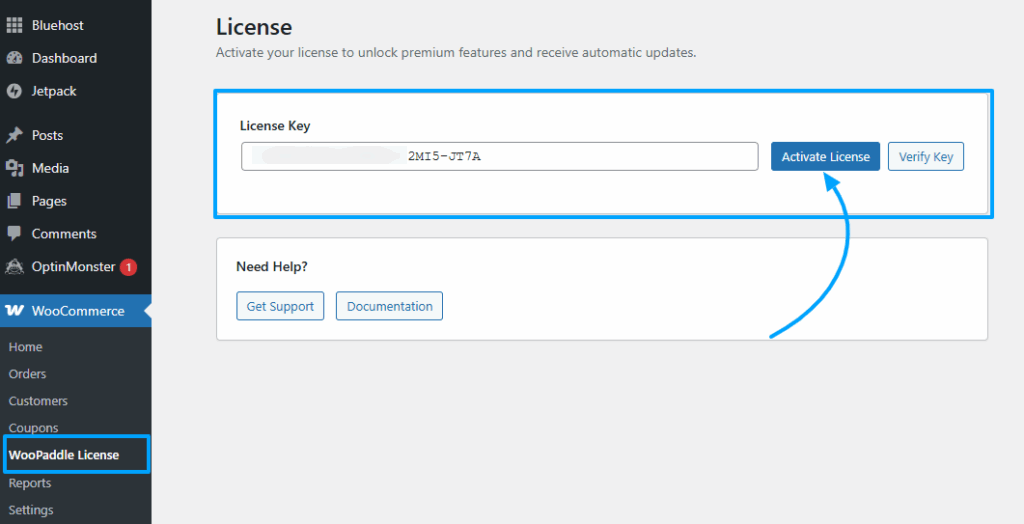
Go to WooCommerce → WooPaddle License from the left-side menu.
Paste your copied License Key into the License Key field.
Click Activate License to complete the activation.
After activating the license key, all premium features and automatic updates are enabled.
How To Active WooPaddle License Key 8
Step 2: Check License Status (Optional if you want to check)
After activating your WooPaddle license key, you can easily verify its current status at any time. This ensures your license remains valid, active, and eligible for automatic updates.
Log in to your WordPress Admin Dashboard.
Go to WooCommerce → WooPaddle License from the left-side admin menu.
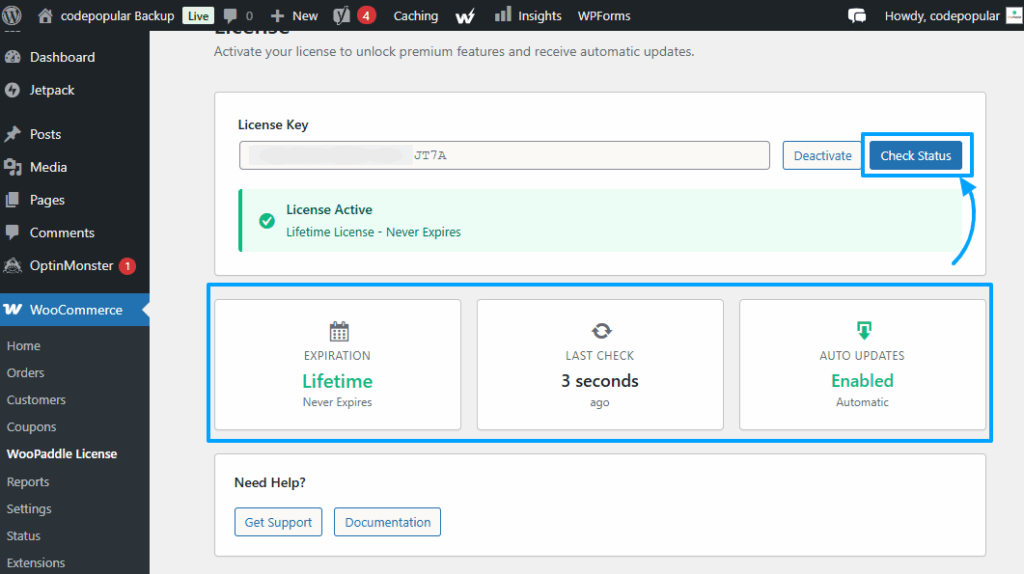
On the same page where you activated your license, click the Check Status button.
What You Will See
After clicking Check Status, the system will instantly retrieve the current license information. You will see the following details:
How To Active WooPaddle License Key 9
✅ License Status
Shows whether your license is active, expired, or invalid. For active lifetime licenses, you will see: License Active – Lifetime License (Never Expires)
🗓️ Expiration
Displays your license type and expiration date. Example:
Lifetime – Never Expires
Or the remaining validity if it’s a yearly license.
🔄 Last Check
Displays how long ago the status was last verified. Example:
3 seconds ago
2 minutes ago
⚙️ Auto Updates
Shows whether automatic updates for the plugin are enabled. Example:
Enabled – Automatic
Or disabled if the license is inactive.
Why Check License Status?
Checking the license status helps you:
Confirm that your license is active
Ensure automatic updates are functioning
Troubleshoot any activation issues
Verify expiration or renewal needs (for non-lifetime licenses)
To continue, make sure your WooPaddle License is active. This premium plugin requires a valid license, and all features remain locked until activation. Once activated, you’ll enjoy the full power of WooPaddle without any limitations.
Step 1: Enable And Configure Plugin Settings
Log in to your WordPress Admin Dashboard.
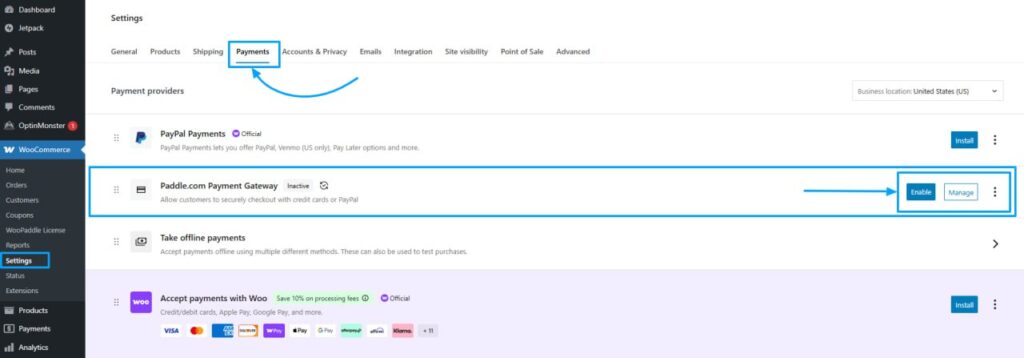
Navigate to WooCommerce → Settings → Payments
Find Paddle.com Payment Gateway in the list
Click Enable or Manage to configure the payment gateway
OR
Go to your WordPress Admin Dashboard.
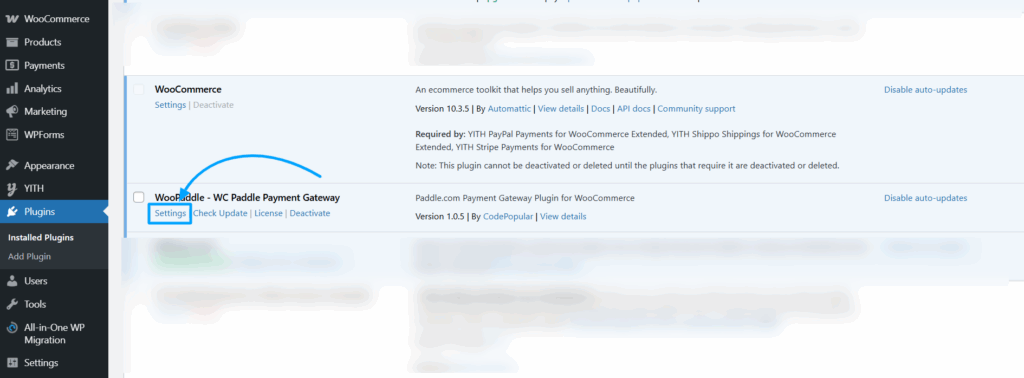
Navigate to Plugins → Installed Plugins.
Find the Woopaddle plugin in the list.
Click on Settings under the plugin to open the WooPaddle configuration page.
After clicking on the Settings option, you will be directed to the configuration page.
Step 2: Configure the General Settings
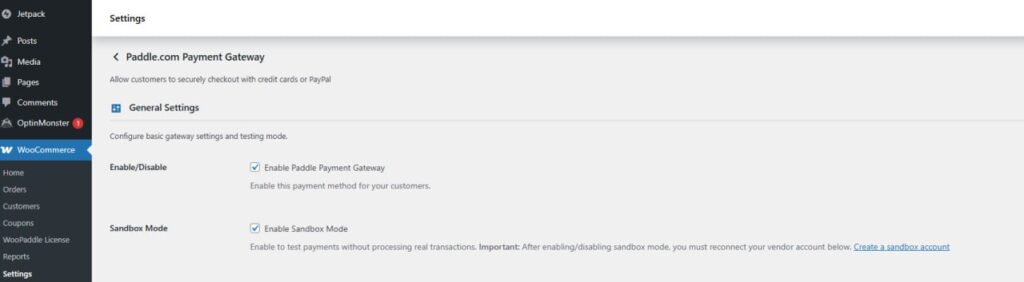
After enabling the WooPaddle plugin and accessing the configuration page, you will see the General Settings section for the Paddle.com Payment Gateway. This section allows you to control the basic behavior of the gateway, including enabling the payment method and switching between Live and Sandbox modes.
1. Enable/Disable Paddle Payment Gateway
Option: ✅ Enable Paddle Payment Gateway This toggle activates the Paddle payment method for your WooCommerce store.
When enabled:
Customers will be able to pay using credit cards, PayPal, Apple Pay, and other Paddle-supported payment methods.
Paddle Checkout will appear during the WooCommerce checkout process.
If disabled, Paddle will not appear as a payment option at checkout.
2. Sandbox Mode
Option: ✅ Enable Sandbox Mode Sandbox Mode allows you to test the checkout process without processing real transactions.
When Sandbox Mode is enabled:
All payments are handled through Paddle’s Sandbox environment.
You can safely test purchases, refunds, and subscription flows.
Important: After turning Sandbox Mode ON or OFF, you must reconnect your vendor account in the gateway settings to ensure the correct environment (Live or Sandbox) is linked.
To get started, you must have a Paddle account that is fully verified. This ensures that all plugin features work seamlessly and without interruptions.
If you don’t have an account yet, visit Paddle’s official Registration page, create your account, and complete the verification process. Once verified, you’ll be ready to unlock the full potential of the WooPaddle plugin and enjoy a smooth, hassle-free experience.
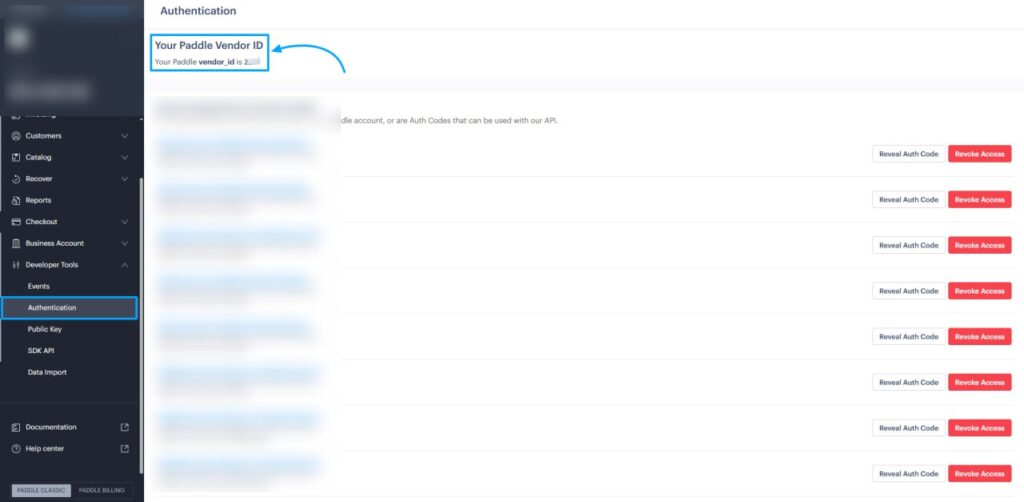
Step 1: Get Your Paddle Credentials
Before configuring the plugin, you need to obtain your Paddle credentials:
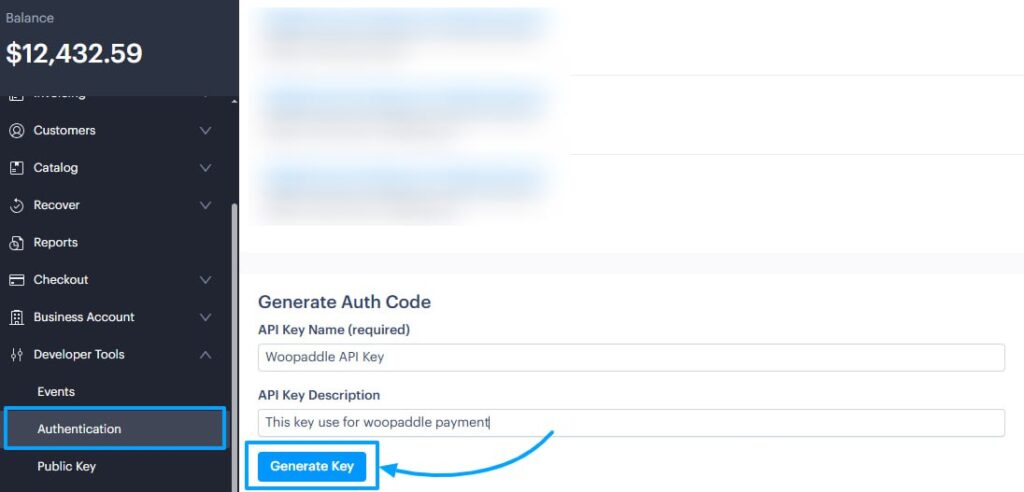
In The Authentication Page, Go Down to Generate the Auth Code
Put an API Key Name (required) and API Key Description
Click On the Generate API Button
After clicking the button, your API key will be generated in a pop-up
Copy your API Key (long alphanumeric string)
Step 2: Set Up Paddle Credentials
After obtaining your Vendor ID and API Key from your Paddle account, you can now integrate Paddle with your WooCommerce store using the WooPaddle plugin. Follow the steps below to complete the setup.
1. Open the WooPaddle Settings Page
Log in to your WordPress Admin Dashboard.
Navigate to WooCommerce → Settings → Payments
Find Paddle.com Payment Gateway in the list
Click Manage to configure the payment gateway
This will open the main configuration area for the Paddle payment gateway.
2. Select the Paddle API Type
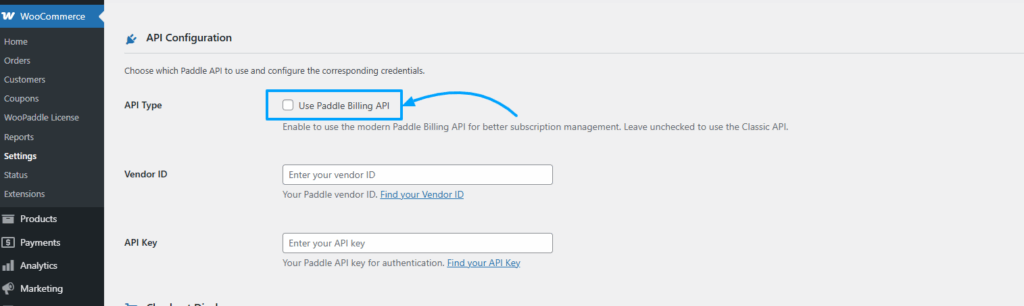
In the API Configuration section, you will see the option:
API Type → Use Paddle Billing API
Leave this option unchecked This ensures the plugin uses the Paddle Classic API, which is recommended for classic checkout, one-time payments, and standard Paddle workflows.
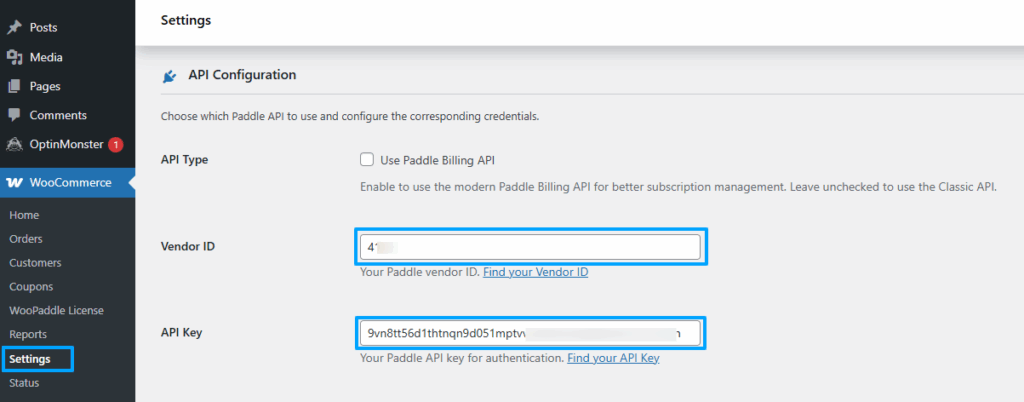
3. Enter Your Paddle Credentials (Vendor ID & API Key)
In the API Configuration section, you will need to provide the two required Paddle credentials:
Vendor ID & API Key
Paste both of the following details that you previously copied from your Paddle account:
Vendor ID – Identifies your Paddle vendor profile and links WooPaddle with your Paddle business account.
API Key – Authenticates your WooCommerce store and allows WooPaddle to communicate securely with the Paddle Classic API.
Make sure both values are correct. Incorrect or incomplete credentials will prevent payments from being processed.
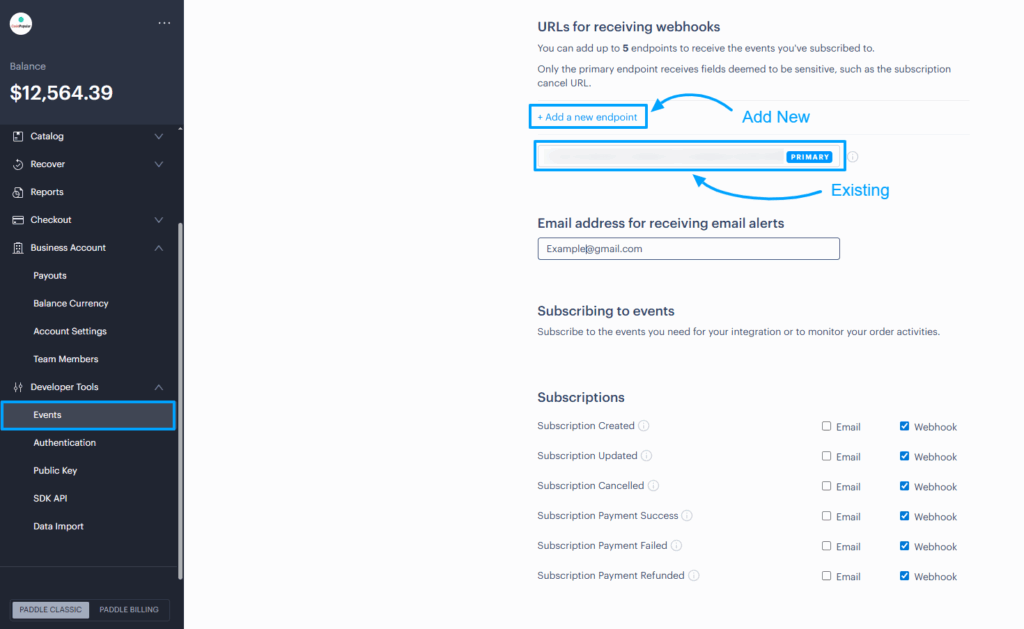
4. Configure Paddle Classic INS (Instant Notifications)
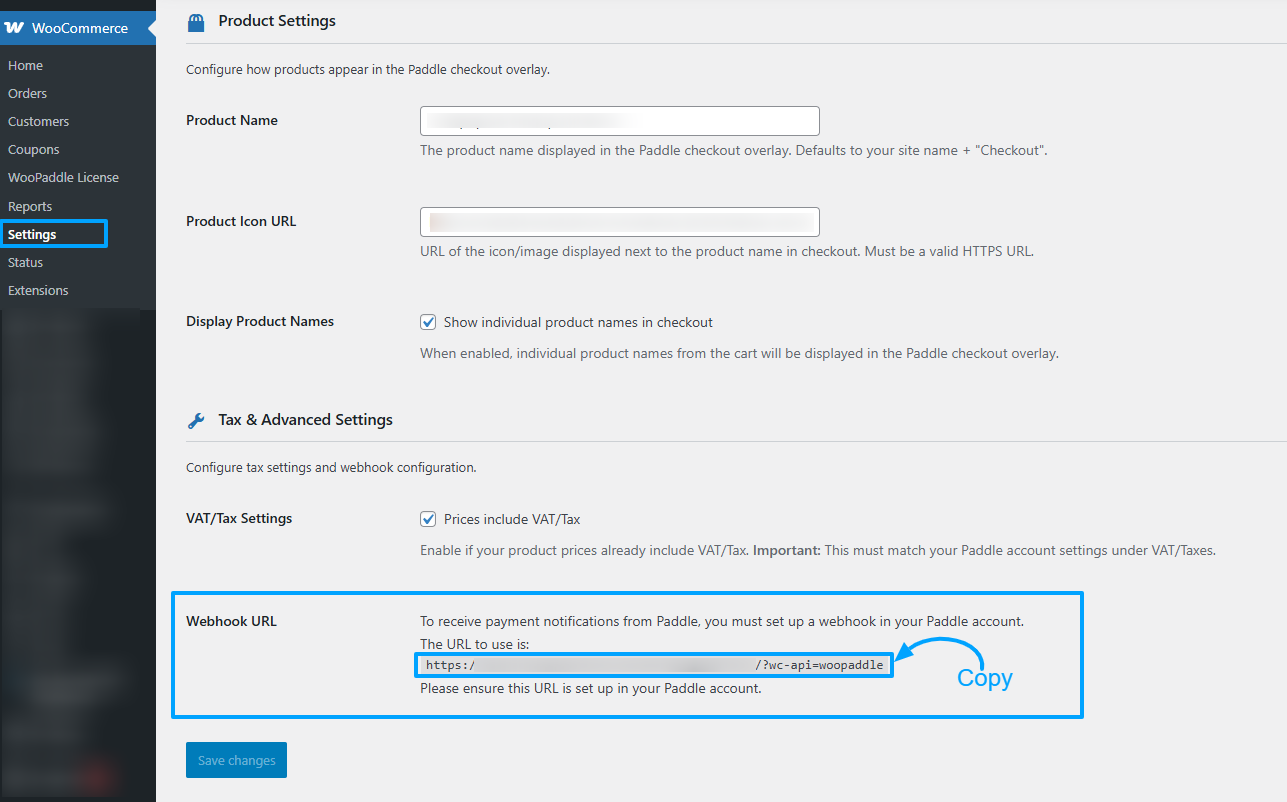
To receive payment notifications from Paddle, you must set up a webhook in your Paddle account.
In the configuration page → Go Down → You will see the webhook URL
To get started, you must have a Paddle account that is fully verified. This ensures that all plugin features work seamlessly and without interruptions.
If you don’t have an account yet, visit Paddle’s official Registration page, create your account, and complete the verification process. Once verified, you’ll be ready to unlock the full potential of the WooPaddle plugin and enjoy a smooth, hassle-free experience.
Step 1: Enable Paddle Billing API
If you want to use Paddle’s modern Billing API—recommended for advanced subscription management, customer portals, usage-based billing, and improved security—you must enable the Paddle Billing API option inside WooPaddle.
Follow the steps below to set it up correctly.
1. Open the WooPaddle Settings Page
Log in to your WordPress Admin Dashboard.
Navigate to WooCommerce → Settings → Payments
Find Paddle.com Payment Gateway in the list
Click Manage to configure the payment gateway
Scroll to the API Configuration section.
2. Enable Paddle Billing API
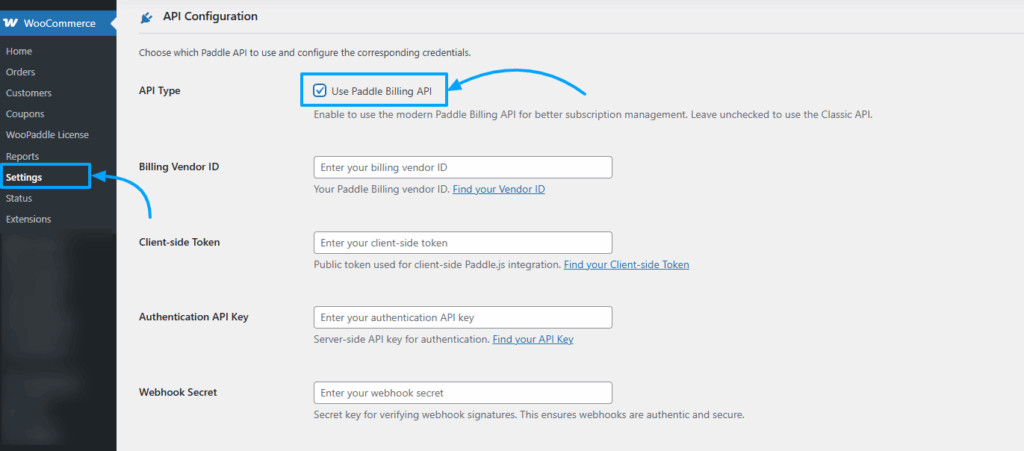
At the top of the API Configuration panel, you will see:
API Type → Use Paddle Billing API
Check this option to enable the Paddle Billing API.
Leaving it unchecked will use the Classic API instead.
Enabling this option switches WooPaddle to use Paddle’s modern Billing platform, providing better subscription handling and more robust APIs.
Step 2. Enter Your Paddle Billing Credentials
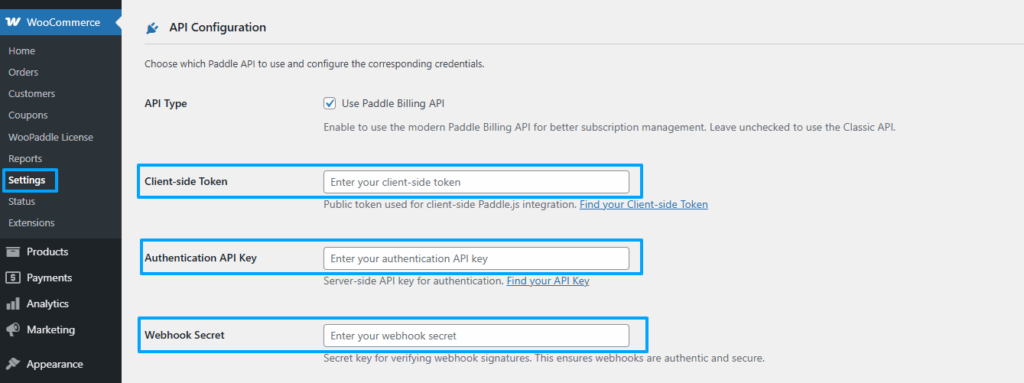
Once the Paddle Billing API is enabled, several required fields will appear:
Authentication API Key
Client Side Token
Webhook Secret
Here is the step-by-step guide to get all the Credentials
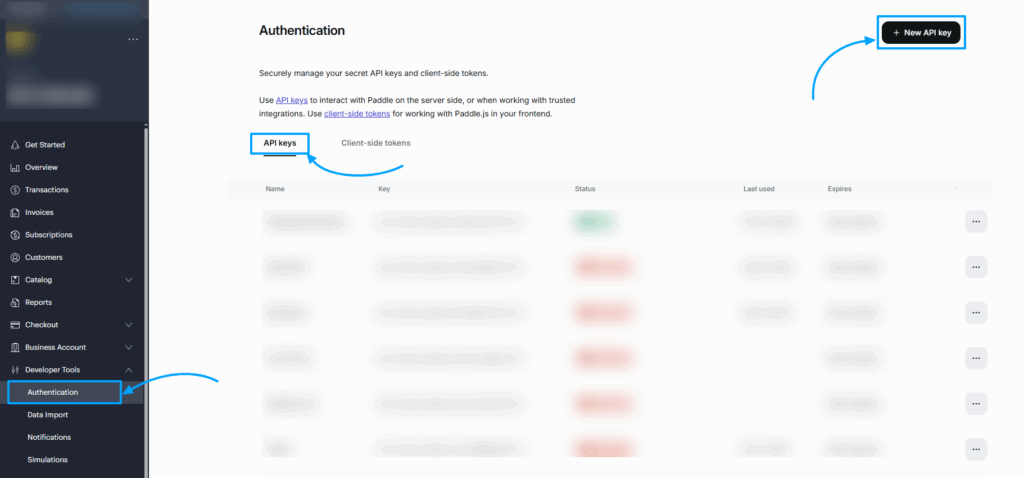
In the authentication page, you will see all API keys
And on the Right side, you will get a button to create a new API Key, just click on the button (New API key)
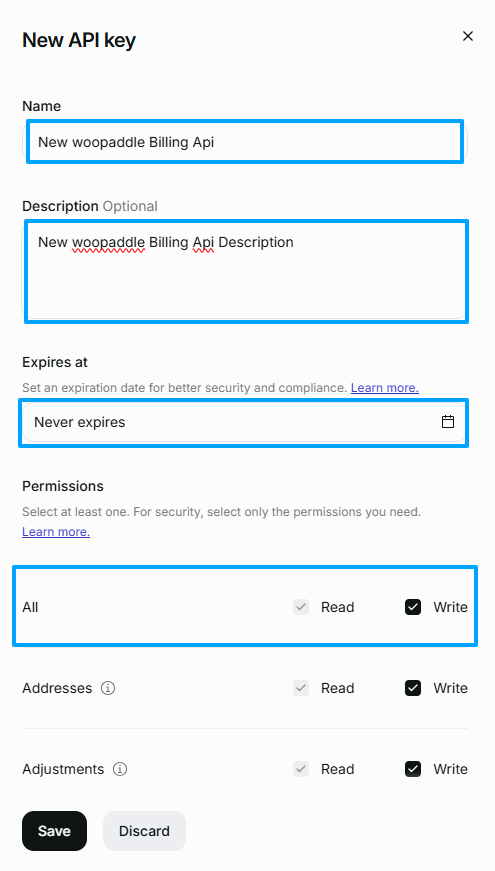
After clicking the New API key button, you will get a pop-up and fill up all the information
Put a new api key name (Required)
And put an api key description, which is optional
Set Expires to “Never Expires”
Set Permissions All Read & Write (Checked read & write permission)
Click on the Save button
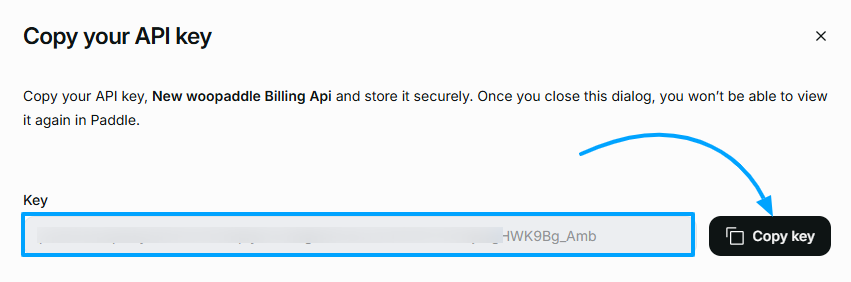
After clicking the save button, your API key will be created. → Copy your API key
2. Get the Client-side tokens
To get Client-side tokens, similar to the authentication key, follow the steps to get the client-side tokens
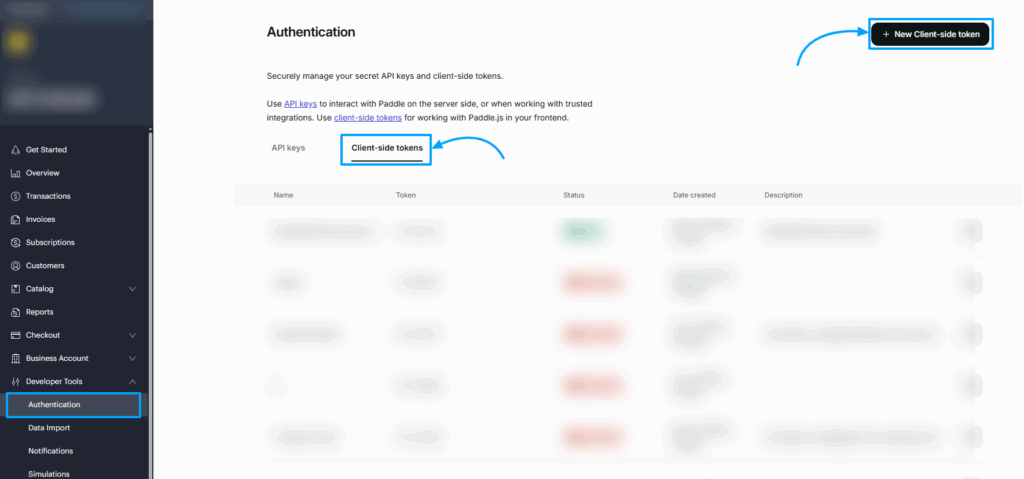
Navigate to Developer Tools→ Authentication
In the authentication page, click on the Client-side tokens option, and you will see all the Client-side tokens.
And on the Right-Top side, you will get a button to create a New Client-side token. Just click on the button (New Client-side token)
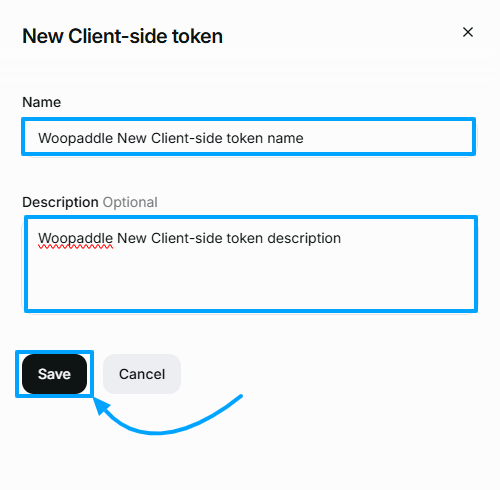
After clicking the New Client-side tokens button, you will get a pop-up and fill up all the information
Use a Client-side token name that is required
And also an optional Client-side token description
After putting all the information, click on the Save button
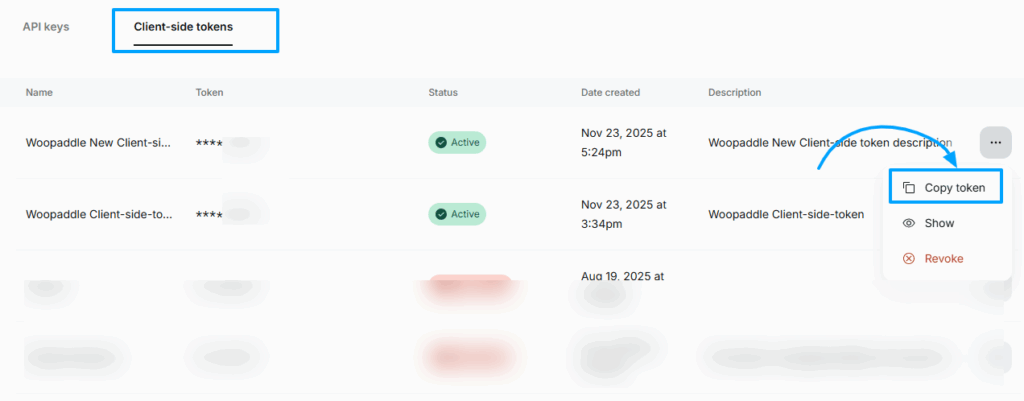
After clicking the save button, your Client-side tokens will be created. → Click on the 3-dot icon to get the token. → After clicking the 3-dot menu, you will get options to copy the token and show the token. → From there, copy the token
3. Get the Webhook Secret
Before getting the webhook secret, you need the webhook URL. Here is the step to get the webhook URL
Log in to your WordPress Admin Dashboard.
Navigate to WooCommerce → Settings → Payments
Find Paddle.com Payment Gateway in the list
Click Manage to configure the payment gateway
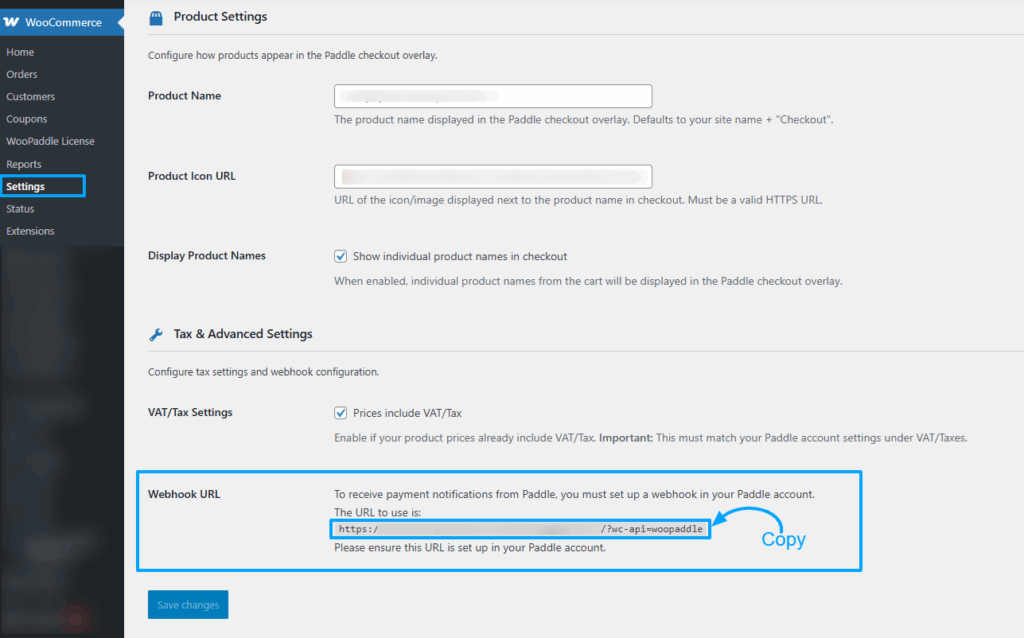
Scroll to the Tax & Advanced Settings section.
In the Tax & Advanced Settings settings, you will get the webhook URL, which will look like (yourdomain.com/?wc-api=woopaddle)
After copying the webhook URL, you can create the webhook secret by following the steps
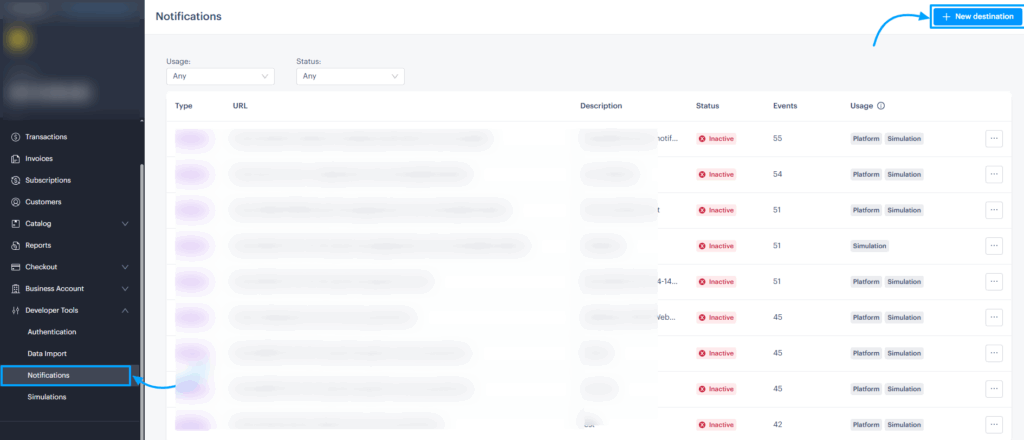
In the Notifications page, you will see all Notifications
And on the Right side, top corner, you will get a button to create a New destination. Click on the button (New destination)
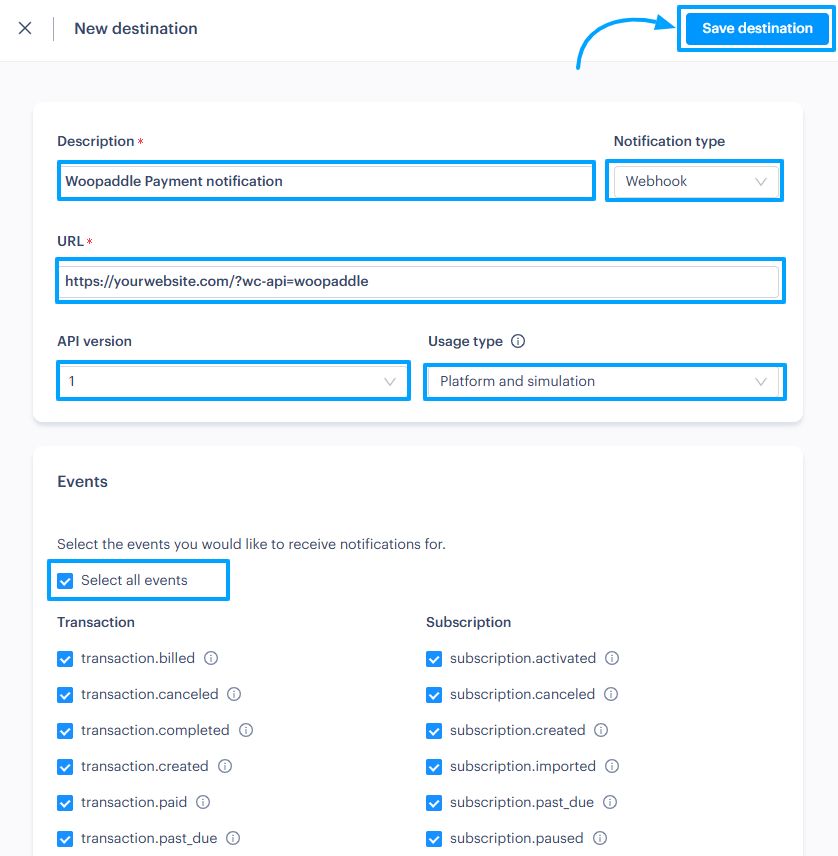
After clicking the New destination button, you will get a sidebar and fill up all the information
Set destination description (Required)
Example: Woopaddle Payment notification
Set Notification type (Webhook)
Set URL. This URL is the webhook URL that you have copied before from the payment configuration page to get the webhook url from here
Example Webhook URL: https://yourwebsite.com/?wc-api=woopaddle
API Version Select 1
Usage type Platform and Simulation
Events: Click on Select all events
And click on the save destination button
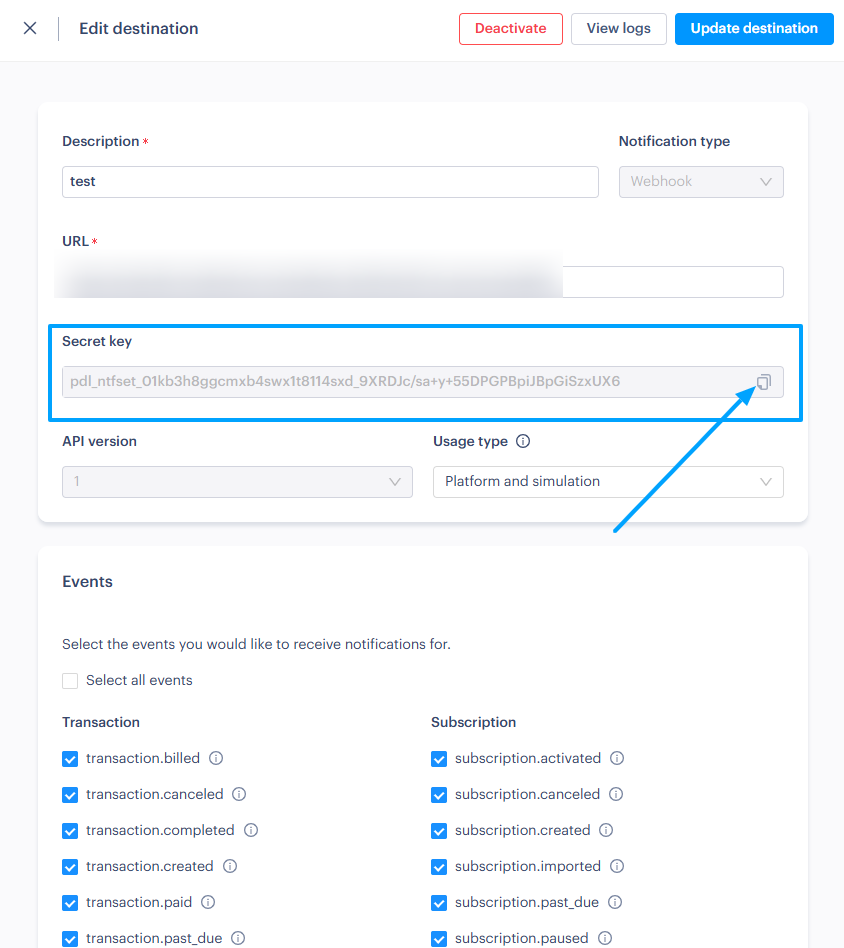
After clicking the save destination button, your Webhook Secret ID will be created. → Click on the 3-dot icon and edit the destination to get the Webhook Secret ID. → After clicking the edit button, you will get options to copy your Secret ID. → From there, copy your Webhook Secret ID
Set Up Paddle Payment (Paddle Billing) 34
Final Step: Adding Paddle API Credentials in WooPaddle
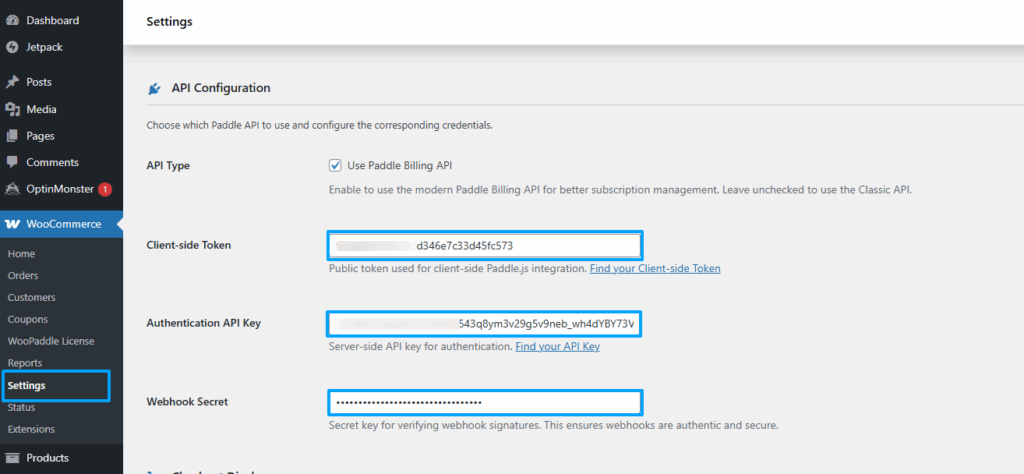
Once you have collected your Paddle credentials ( API Key, Client-side Token, and Webhook Secret) from your Paddle dashboard, follow the steps below to configure them inside WooPaddle:
1. Paste Your Authentication API Key
Locate the Authentication API Key field.
Paste your Paddle API Key in the Authentication API key field.
This key is used to authorize all server requests between WooPaddle and Paddle.
2. Paste Your Client-side Token
Find the field labeled Client-side Token.
Paste your Paddle Client-side Token into this box.
This token is required for Paddle.js and secure checkout initialization.
3. Add Your Webhook Secret
Find the Webhook Secret field.
Paste your Webhook Secret copied from Paddle.
This ensures WooPaddle can verify incoming webhooks and process orders, renewals, and subscription events securely.
4. Save Changes
Scroll to the bottom and click Save Changes to apply your configuration.
After clicking the Save changes button, your Paddle Payment Integration Is Ready
Your Paddle payment system is now fully active on your website using WooPaddle. You can start taking payments, new orders, and subscriptions without any hassle. Go ahead and try a quick test payment to see it in action!