
 November 6, 2025
How to a install wordpress theme on WordPress Easily - 2025
Are you looking for a easy way be to a install WordPress theme. Do you want to create a new website or change the theme of your website? However, you do not know how to install the theme on your WordPress site . If your answer is yes then this blog is for you .
What is a WordPress theme?
A WordPress theme is a collection of templates, design files, and styles that determine how your WordPress website looks and feels. In simple terms, a theme controls the appearance of your website, including its layout, colors, fonts, and overall design.
Think of it like this: if WordPress is the structure of your house, then the theme is the decoration—the paint, furniture, and style that make it look appealing.
A theme controls many parts of your site, such as the layout of pages and posts, the header and footer, sidebars, fonts, colors, background images, and even how your site appears on mobile devices.
There are three main types of WordPress themes:
- Free themes, which you can find in the WordPress.org Themes Directory.
- Premium themes, which are paid and often available on marketplaces like ThemeForest or developer websites.
- Custom themes, which are built specifically for a brand or project to match unique requirements.
Some popular WordPress themes include Astra, GeneratePress, OceanWP, Hello Elementor, and Twenty Twenty-Five.
To install WordPress themes, you must first log in to your WordPress account.
There are two easy ways to install a WordPress theme :
- Free WordPress Theme Install
- Premium zip formate file
1. Process install a WordPress Theme?
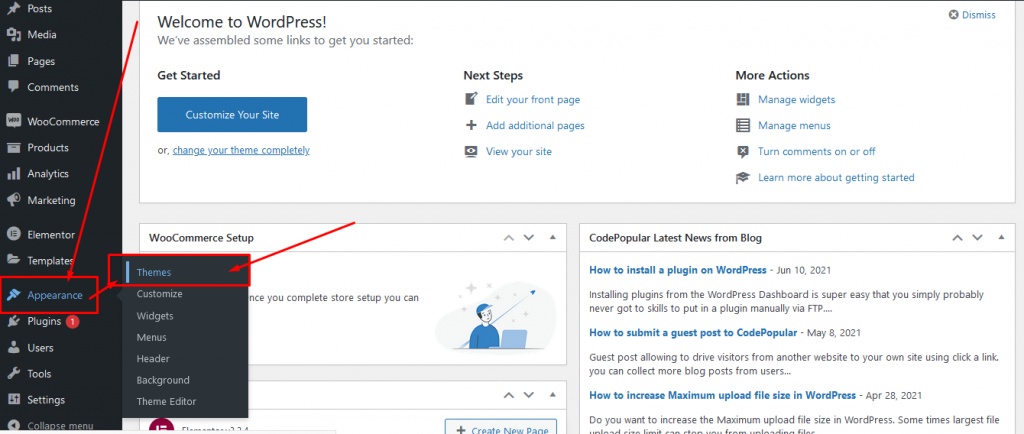
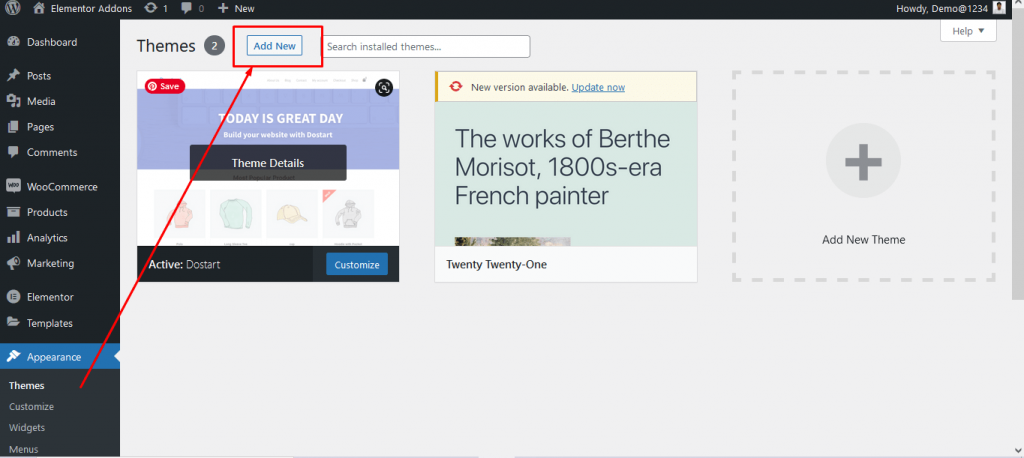
Find Navigate to Appearance Hover >> Click Themes
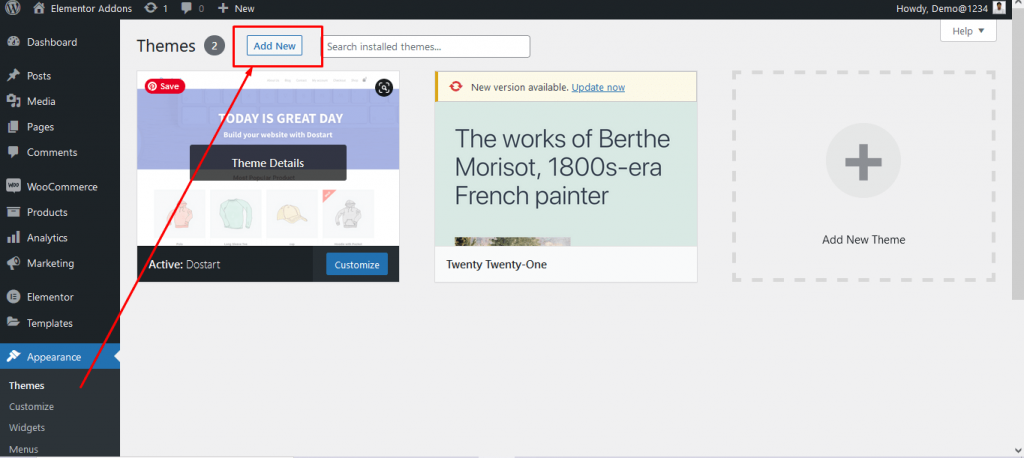
To install a new theme, you must first click on the Add New button. You can choose your theme after clicking Add New
What kind of theme are you looking for? Please check the application filter and find your theme ? From here you can choose and install the theme of your choice .
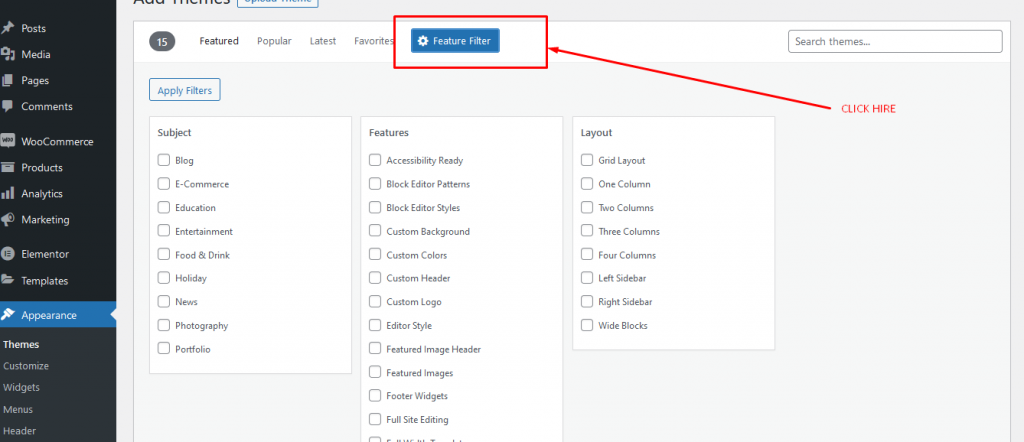
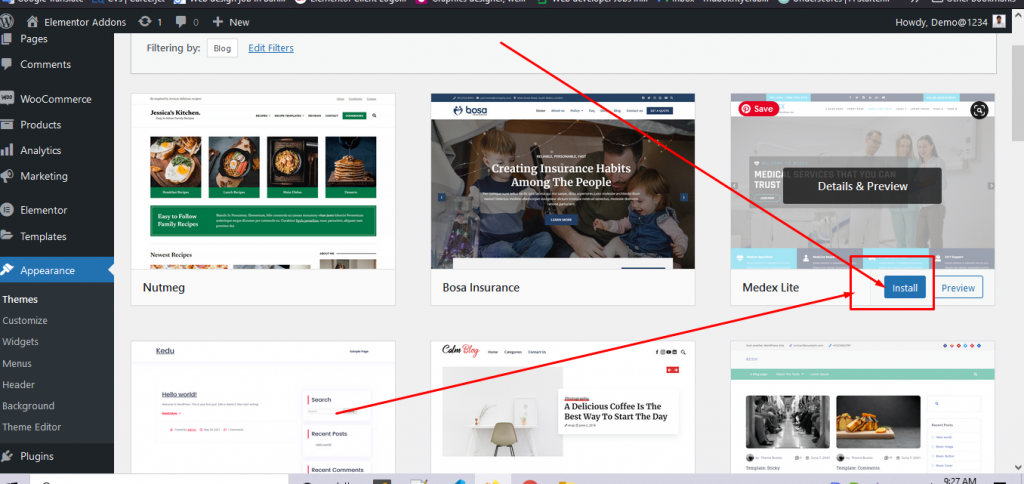
Find your theme from here. You’ll have the option to click More Info to learn about the theme’s features and preview the theme, or you can click Download to begin the installation process.
When the installation process is complete, click on the Activate button .
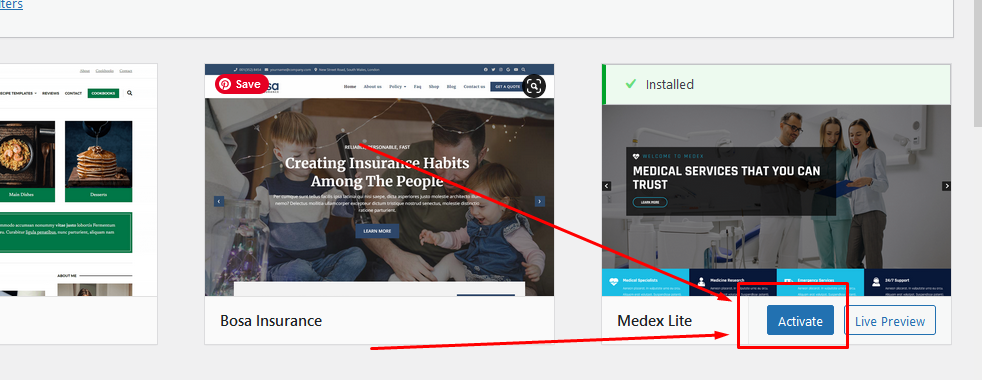
Click on the activate button active, and you’ve successfully installed and activated your WordPress theme. Depending on your theme, it may add additional setting options that you need to configure.
After clicking on the active button, your theme will have activated success . After that your theme will start working on your site .
2. Premium zip format file.
If you have already downloaded the theme, let’s install the theme on the next key.
Find Navigate to Appearance Hover >> Click Themes
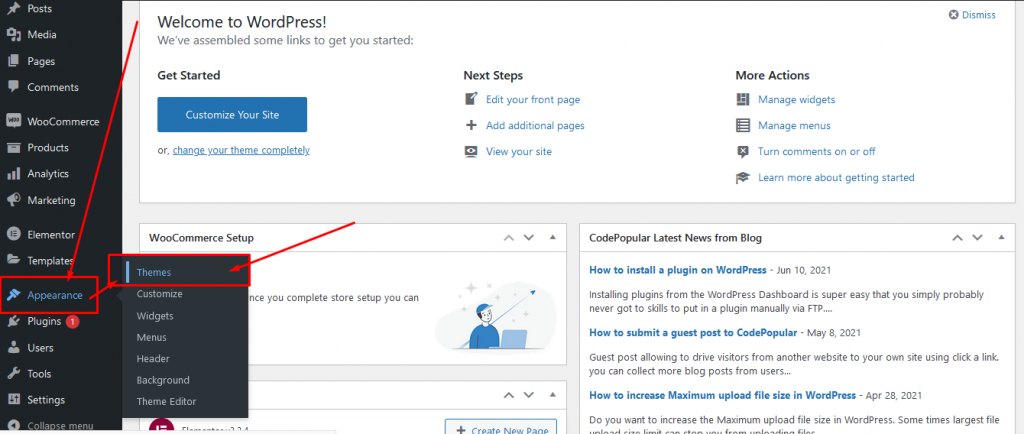
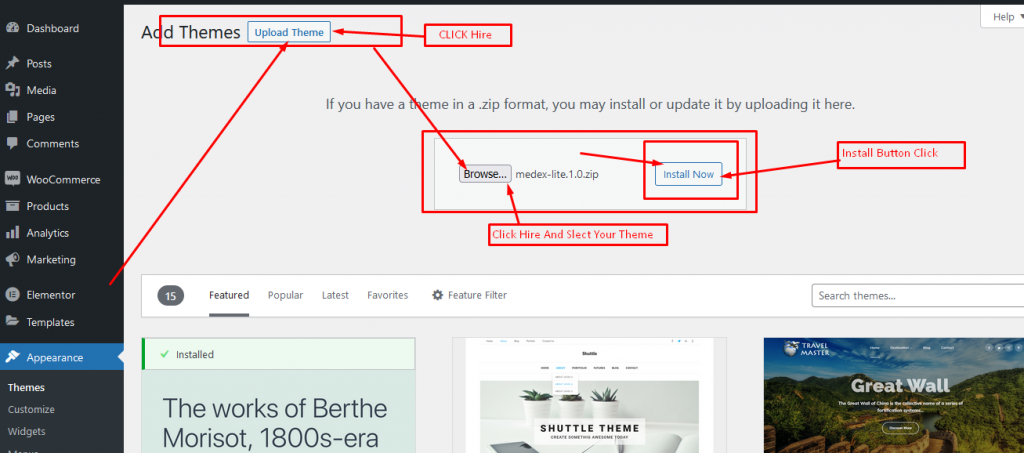
Now click on add new button. after clicking on add new button you can see the WordPress theme list from wordpress.org official site. now you can see an upload theme button.
and click on upload button. here you can see an upload here to install a theme from your computer. this is also a super-easy way to install the theme for your website. you no need to be a programming expert to complete this process.
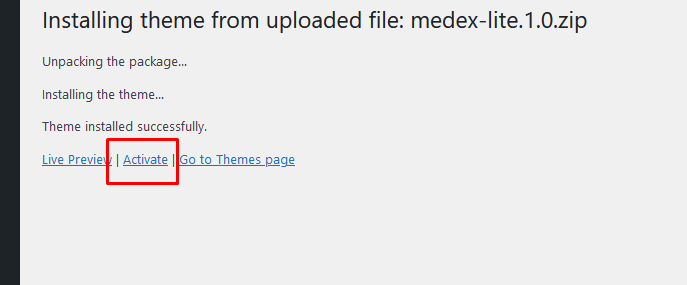
Once your theme is successfully installed, you will see a success message along with the link to activate and preview the theme. From here you need to click on the activate button.
Sometimes you will face issues due to the limited maximum upload file size for your website. just you need to increase the file upload file size. you can read our blog on how to increase upload file size in WordPress. if you face any problem you can get in touch with just by contact with us.