
 November 29, 2025
Set Upload File Type Restriction in WordPress
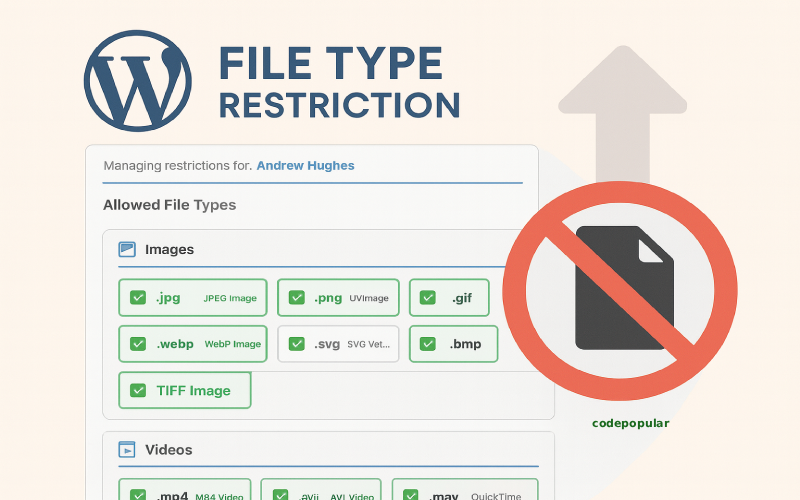
Set Upload File Type Restriction in WordPress is essential when running a WordPress site, as controlling what types of files users can upload helps maintain security, performance, and storage efficiency. By default, WordPress only supports a limited range of file types, such as JPG, PNG, PDF, and DOCX — but many situations require allowing or restricting additional file formats.
In this guide, you’ll learn:
- Why file type restrictions matter.
- How to restrict (or allow) file types in WordPress.
- How to allow SVG file upload in WordPress.
- How to use EasyMedia to manage uploads safely and more efficiently.
Let’s get started.
Why Restrict File Types in WordPress?
Managing upload permissions is an essential part of keeping a WordPress site secure, stable, and optimized. When you control what types of files users can upload, you reduce the risk of security vulnerabilities, manage server storage efficiently, and prevent common user errors that could harm your website’s performance.
Below are the key reasons why file type restrictions matter:
1. Strengthen Security Protection
Not all file formats are safe. Certain file types—such as .exe, .php, .js, .sh, or .json—can contain scripts or executable code.
If these files are uploaded by unauthorized users or contributors, they can:
- Inject malicious scripts into your website
- Harm your server environment
- Allow attackers to exploit vulnerabilities
- Create backdoor access to your system
By restricting dangerous or unnecessary file types, you add an extra layer of defense to your WordPress site, ensuring that only safe, approved files are allowed within your media library.
2. Better Server Storage Management
Every uploaded file consumes your hosting storage. When users upload large or unnecessary file formats—such as ZIP archives, RAW images, or video files—it can quickly fill up your disk space.
Restricting upload types helps:
- Keep your server clean
- Reduce unwanted storage usage
- Maintain better control over large file handling
- Prevent hosting overage fees and slowdowns
This is especially important for shared hosting or limited-resource environments.
3. Prevent User Mistakes and Upload Errors
Not all users understand which file types are appropriate for websites. Without restrictions, they might accidentally upload:
- Unsupported formats
- Corrupted files
- Extra-large media
- Potentially harmful content
By limiting allowed file types, you provide a safer, more guided experience for editors, authors, or contributors, reducing the chances of:
- Upload failures
- Broken images
- Media library clutter
- Slow loading pages
4. Improve Website Performance
Your website’s performance is directly affected by the media files stored in your library. Unrestricted uploads may lead to:
- Large files slowing down backend operations
- Inefficient media loading
- Increased backup size and slower backup processes
- High bandwidth usage
Restricting allowed file formats ensures your site only uses optimized, web-friendly media (like JPG, PNG, SVG, WebP), keeping your performance smooth and consistent.
Method 1: Set Upload File Type Restriction in WordPress (Code Snippet)
You can restrict allowed file types by editing your theme’s functions.php or using a custom plugin.
Example: Allow Only JPG, PNG, PDF
function custom_allowed_mime_types( $mimes ) {
    return [
        'jpg|jpeg' => 'image/jpeg',
        'png'      => 'image/png',
        'pdf'      => 'application/pdf',
    ];
}
add_filter( 'upload_mimes', 'custom_allowed_mime_types' );
Example: Block Specific File Types
function block_certain_file_types( $mimes ) {
    unset($mimes['svg']); // block SVG
    unset($mimes['exe']); // block EXE
    return $mimes;
}
add_filter( 'upload_mimes', 'block_certain_file_types' );
Method 2: Restrict File Types With a Plugin
If you prefer not to use code, plugins make file type management simple. There are many plugins in free to accept custom file types, but EasyMedia Pro by CodePopular offers you the seamless feature to set file type restrictions in WordPress. This is not only about the set file type restriction; there are many features like set role-based upload limit, set user disk limit, and User media library management.
Why EasyMedia?
✔ Drag-and-drop media folder management
✔ Restrict allowed file types for each user role
✔ Control upload limits & permissions
✔ Prevent dangerous file types automatically
✔ Perfect for membership sites, LMS platforms, agencies, and marketplaces
Do you want to get Easymedia Pro for an all-in-one WordPress media solution Plugin? Explore the EasyMedia Pro plugin.
Easymedia also has a free plugin that only works to increase upload limits and solves the big files upload issue in WordPress. Click here to check the EasyMedia Free WordPress plugin.
You can also use another free WordPress plugin to manage WordPress file types. This plugin allows you to restrict your site users from uploading files of certain types and control the maximum file upload size. Administrators can select the file types and file upload limit by user role. This plugin restricts users from uploading unwanted files using the WordPress media uploader. Check the plugin here.
Final Thoughts
File type restrictions are essential for keeping your WordPress website secure, organized, and lightweight. You can manage them through simple code, but if you want a complete upload management system with advanced controls, EasyMedia is the most user-friendly and powerful option.