How to Sell PDFs Online With Paddle in WooCommerce
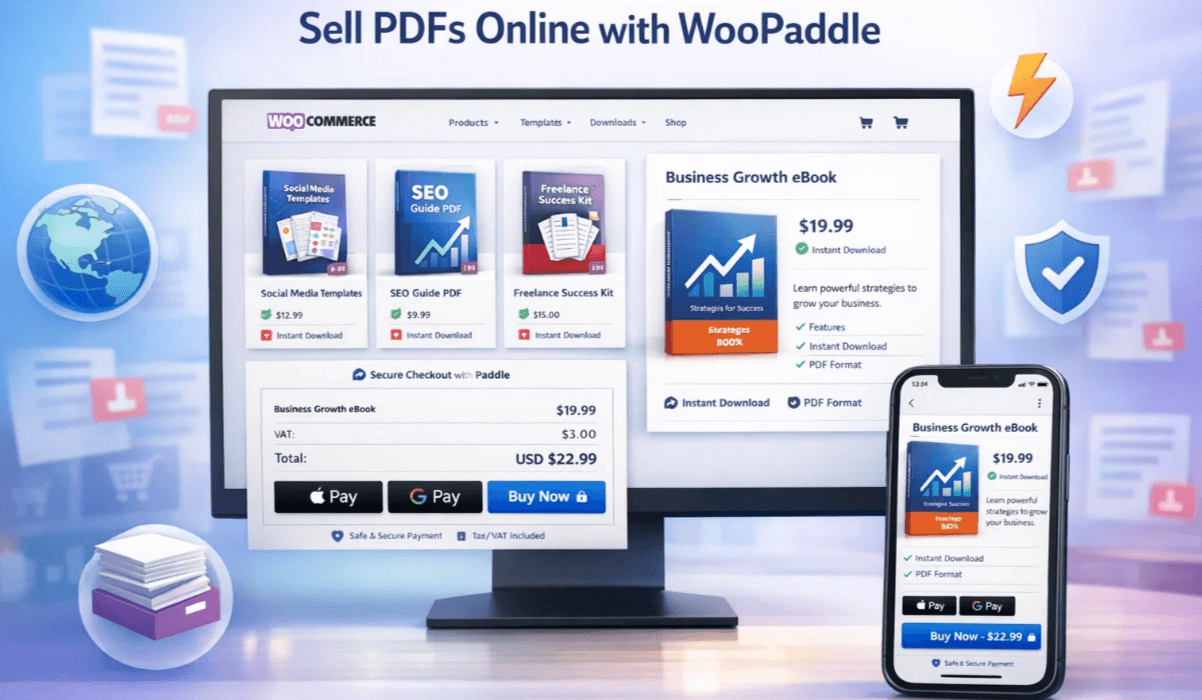
If you want to sell PDFs online, you are entering the fastest route to building a scalable business. This digital product business model allows creators to generate consistent income with minimal overhead.
Digital downloadable products like ebooks, templates, and guides are easy to distribute with WooCommerce stores. You can create a product once and sell it thousands of times without inventory overhead.
Table of Contents
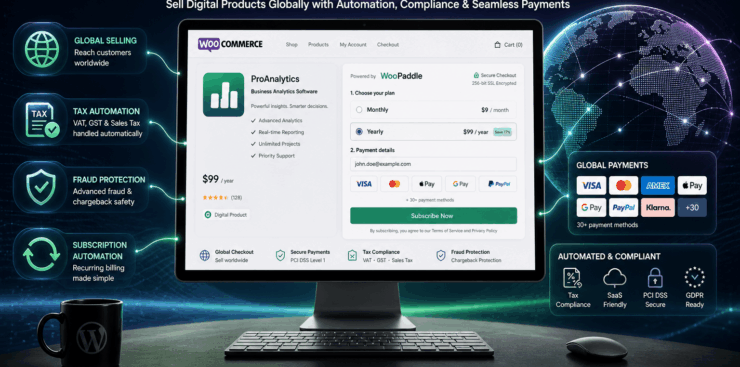
However, the challenge lies in managing global payments involving taxes and compliance. Paddle payment gateway solves this issue by acting as the Merchant of Record for your digital store. WooPaddle plugin syncs with WooCommerce store and works as a payment system that handles payments, taxes, and delivery in one place.
This guide shows you exactly how to sell PDFs online using WooCommerce and Paddle with easy steps. So, let’s dive in.
Why Selling PDFs Online Is a Smart Business Move
The digital publishing industry is expanding rapidly with its efficient business model. Statistics show that digital content creation is expected to be worth more than 38 billion by 2030. To capture this market share, your checkout process must be flawless.
Key benefits:
- No inventory or shipping expenses: You won’t need physical storage space and costly logistics because digital products exist in a virtual format.
- Instant global delivery: Your customers receive their files instantly after purchasing, regardless of their location or time zone.
- High profit margins: You retain a larger percentage of each sale since there are no recurring manufacturing or raw material costs to subtract from your revenue.
- Easy updates and version control: You can modify your content and distribute the latest version to all your existing customers with a single file upload.
Here are some popular PDF products that you can sell online through a WooCommerce store:
- Ebooks and tutorials
- Business templates
- Checklists and planners
- Educational resources
If you are planning to sell PDFs on WordPress, WooCommerce gives you the flexibility to manage and upgrade these products easily.
Why Use Paddle to Sell PDFs Online
WooCommerce offers payment gateway support for PayPal, Stripe, and direct bank transfers by default. These payment options work well when it comes to physical products. However, they create problems for managing payments for digital goods like PDFs.

The biggest issue you will face while selling digital products is tax compliance. Let’s say you sell PDFs online in the European Union. Your WooCommerce store must charge the correct VAT rate based on the buyer’s location.
So, your store must be prepared to calculate VAT for several countries. The same thing applies for GST in Australia, Canada, or India, where standard payment gateways fail. You will need separate tax plugins with professional or legal advice, which requires a lot of effort.
Paddle removes this administrative burden of handling international payments. It calculates, collects, and remits taxes for over 200 countries. You don’t need to handle a single tax during the checkout process.
Paddle accepts all major global payment methods, including cards, PayPal, Apple Pay, and more. Besides, you will get fraud protection and subscription management that most payment gateways lack.
Advantages of Using WooPaddle for Your Digital Store
WooPaddle serves as the essential bridge to connect your WordPress site and the Paddle payment gateway. It allows you to sell PDFs online with Paddle payment security through the familiar interface of WooCommerce.
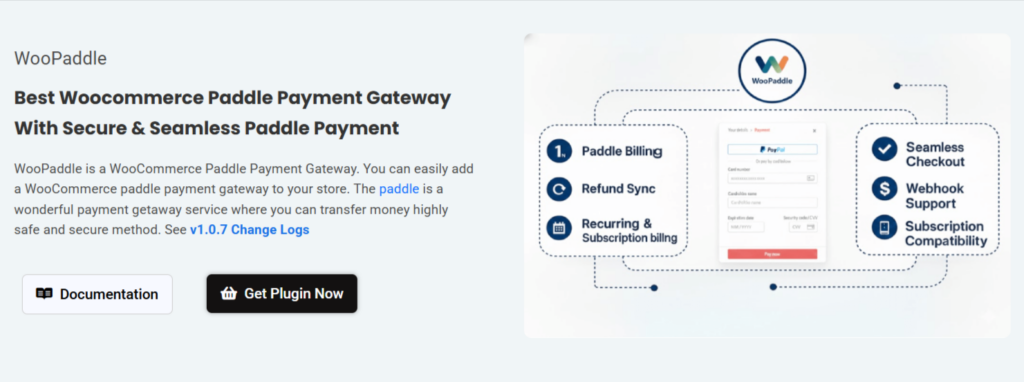
Here are the benefits of using WooPaddle when you aim to sell PDFs on WordPress:
- Global Payment Localization: Paddle displays prices in the customer’s local currency during checkout. Besides, it accepts region-specific payment methods like iDEAL in the Netherlands, Sofort in Germany, and Bancontact in Belgium. Thus, customers won’t experience any friction during checkout.
- Multiple Payment Methods: Your customers can pay via Credit Card, PayPal, or Apple Pay through a single integration.
- Centralized Reporting for Digital Products: Paddle provides a single dashboard with all your sales, tax collected, and payouts. You do not need to reconcile Stripe, PayPal, and WooCommerce reports separately. Export data for accounting in one click.
- Simplified Checkout Experience: WooPaddle replaces the multi-page WooCommerce checkout with a single-page Paddle form. Faster checkout means higher conversion rates when you sell PDFs online.
- Automatic Receipts and Invoices: Paddle generates professional receipts and VAT invoices for every transaction. Customers receive tax-compliant documents automatically, which builds trust and reduces support requests.
- Subscription Management for PDF Bundles: Woopaddle offers recurring payments, which help you sell ongoing access to a library of PDFs. Paddle handles subscription retires, dunning management, and customer portal access.
- One Click Upsells: You can offer a second PDF immediately after the first purchase is complete. Paddle supports post-checkout upsell without complex funnels. Thus, you can add a related guide or template for an additional payment on WooCommerce.
- Multilingual Checkout Support: Paddle checkout supports over 20 languages, including Spanish, French, German, Japanese, and Chinese. The language auto-detects based on the customer’s browser settings. This removes language barriers when you sell PDFs on WordPress to global audiences.
Prerequisites Before You Start
You need four things before following the steps below:
- First: A working WooCommerce store that can be a new installation or an existing store.
- Second: A free Paddle account – Sign up at paddle.com. Account approval typically takes 24 to 48 hours.
- Third: The WooPaddle plugin is installed for connecting WooCommerce to the Paddle payment gateway.
- Fourth: Your PDF file is ready. Protect it with a simple watermark including the customer’s email address. This discourages sharing.
Now, we will move on to the steps to configure your store to sell PDFs online with Woopaddle.
Step-by-Step Guide to Sell PDFs Online With WooPaddle
Follow these steps to configure your store and start your journey to sell online PDFs in WooCommerce effectively.
Step 1: Install and Activate WooPaddle
First, you need to install and activate the WooPaddle to connect WooCommerce with Paddle. Follow these steps:
Purchase and download WooPaddle from the official site.
- Purchase the WooPaddle plugin from the official site.
- Get the WooPaddle plugin from the registered account on their site.
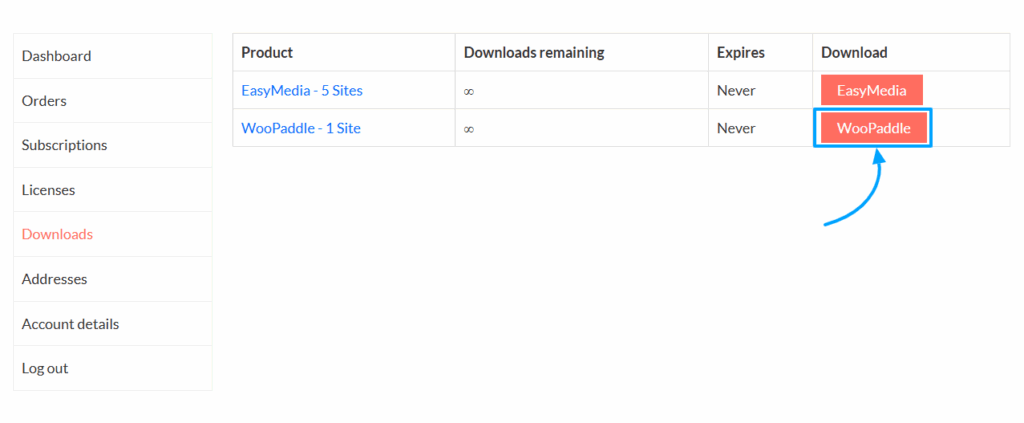
- In WordPress, go to Plugins > Add New, upload the file,
- Install and activate the WooPaddle plugin.
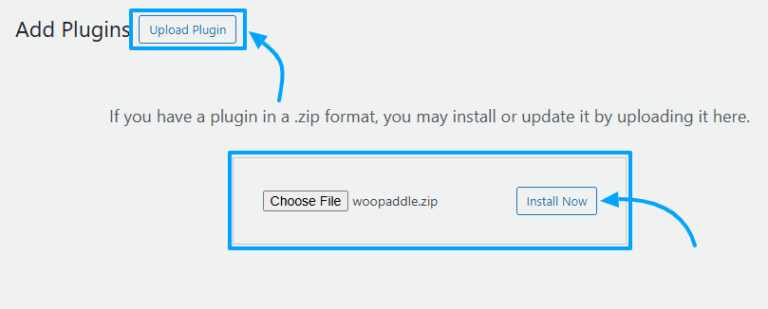
Your Paddle checkout integration with WooCommerce is not activated and is not ready to configure.
Step 2: Enable Paddle Billing API
- Navigate to WooCommerce > Settings > Payments.
- Select Paddle.com Gateway → Manage.
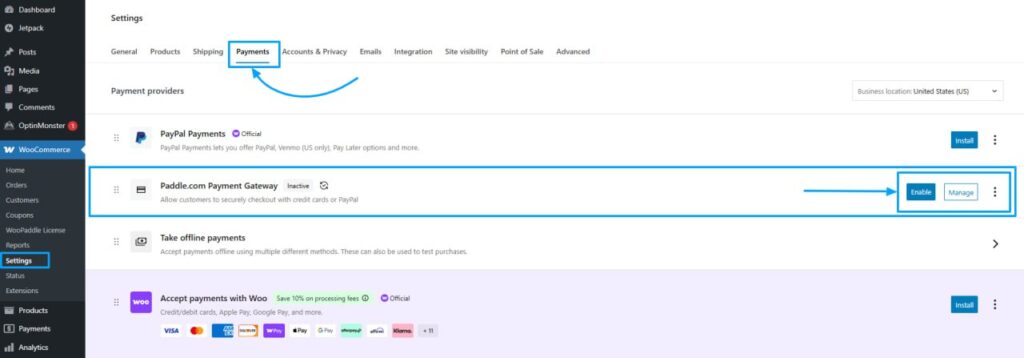
- Under API Configuration, tick Use Paddle Billing API.
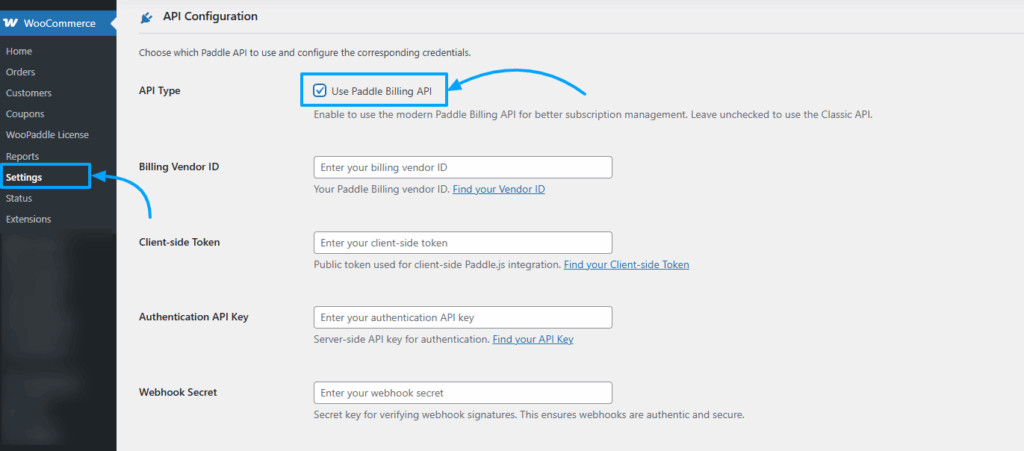
This switches WooPaddle to Paddle’s modern checkout infrastructure.
Step 3: Generate API Credentials in Paddle
Log in to your Paddle vendor dashboard and collect three credentials:
Get the API Key:
- Go to Developer Tools → Authentication.
- Click New API Key, generate,
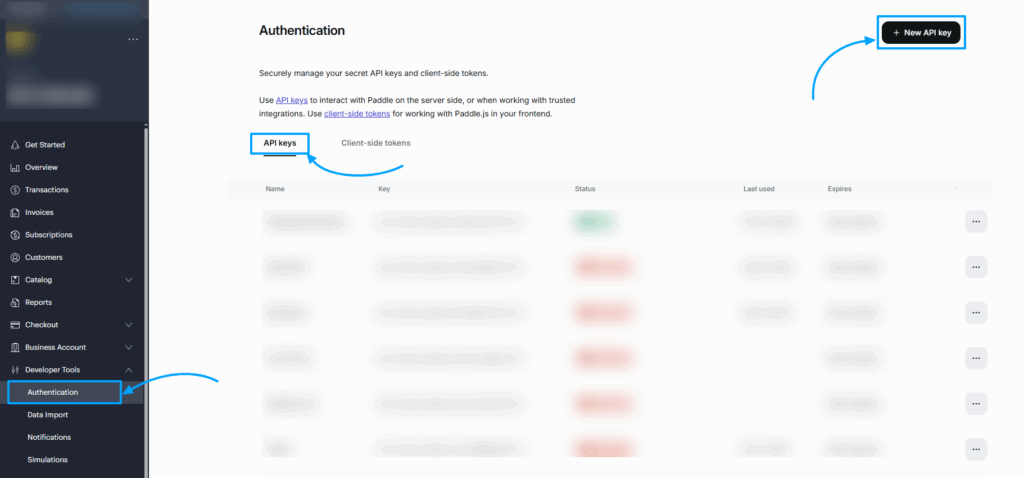
- Give your API key a new name, description,
- Set expires to “Never Expires.”
- Set permissions to All Read & Write.
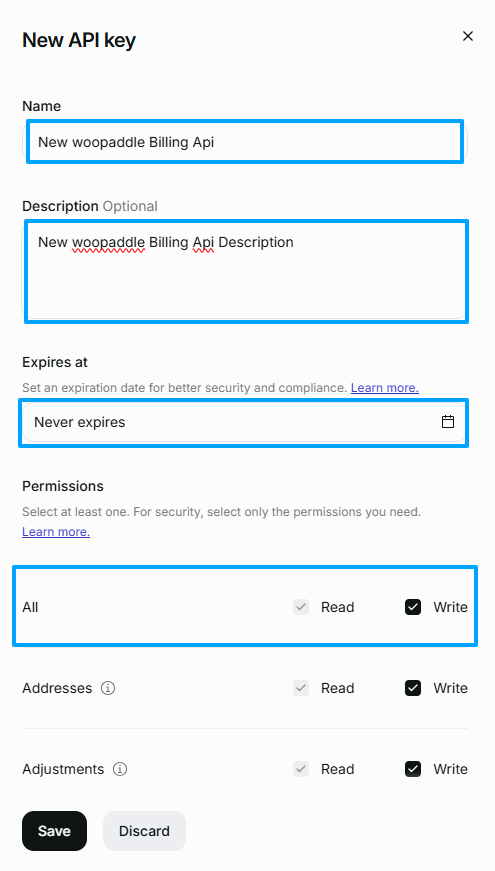
- Now, click the save button.
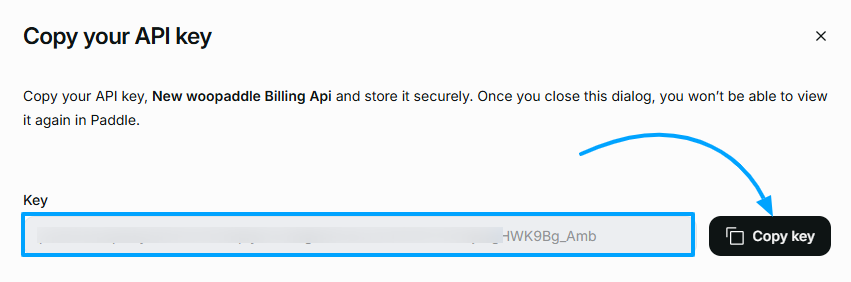
- Your API Key is now ready; you need to copy it.
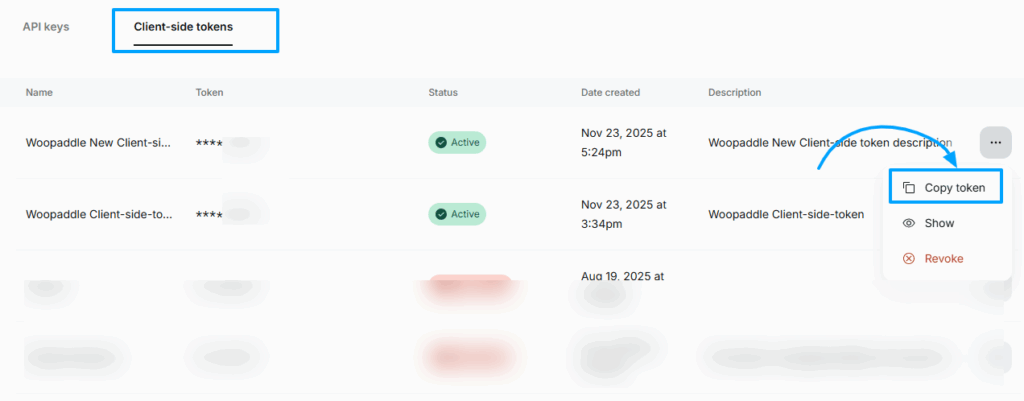
Get Client Side Token:
- Under Authentication → Client-side tokens, click New Client-side token.
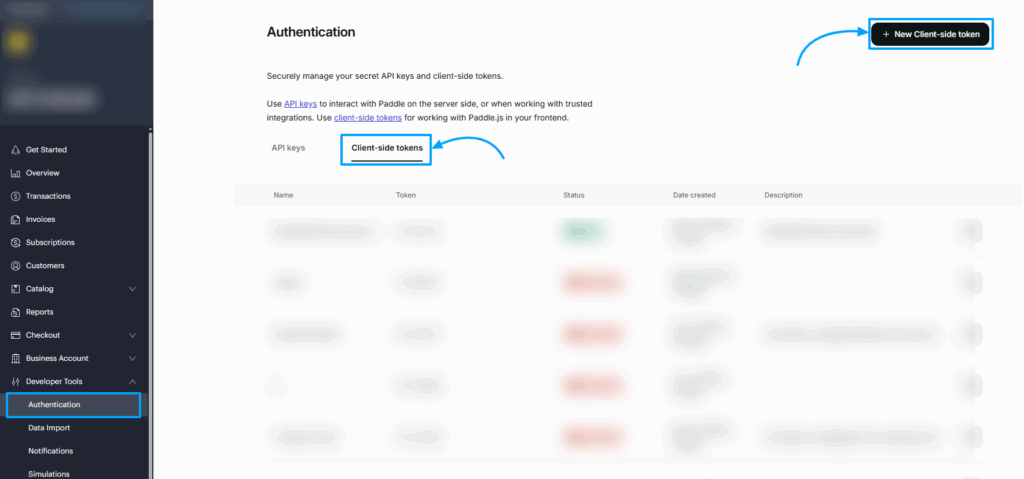
- Name it (e.g., WooCommerce Frontend Token), save, and copy the token securely.
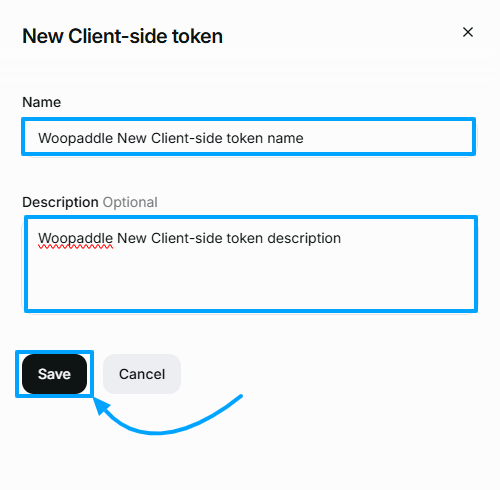
- Click Save to create your client-side token.
- Now open the 3-dot menu and choose Copy token to use it in WooPaddle.
Get the Webhook Secret
- Copy your WooPaddle webhook URL from WordPress (Settings → Tax & Advanced Settings).
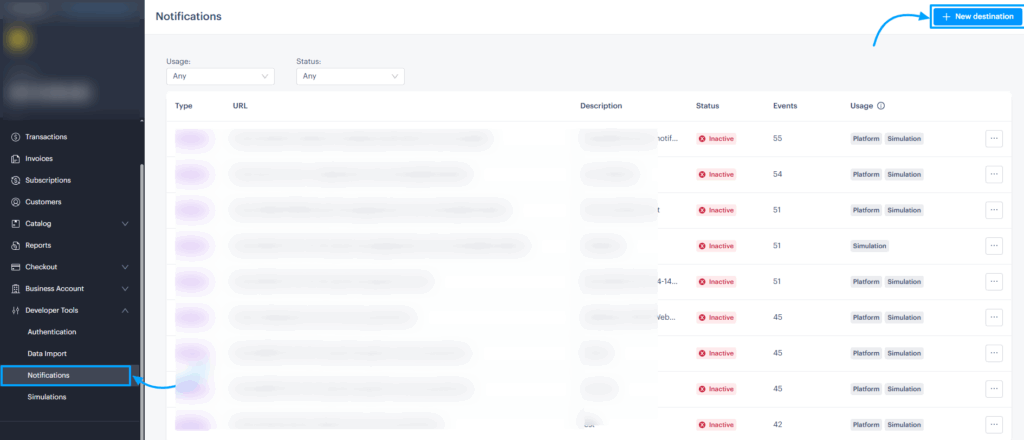
- In Paddle, go to Developer Tools → Notifications,
- Create a new destination, paste the URL, select all events, and save.
- Now select destination description, set notification type (Webhook), and set the URL. (Example: https://yourwebsite.com/?wc-api=woopaddle )
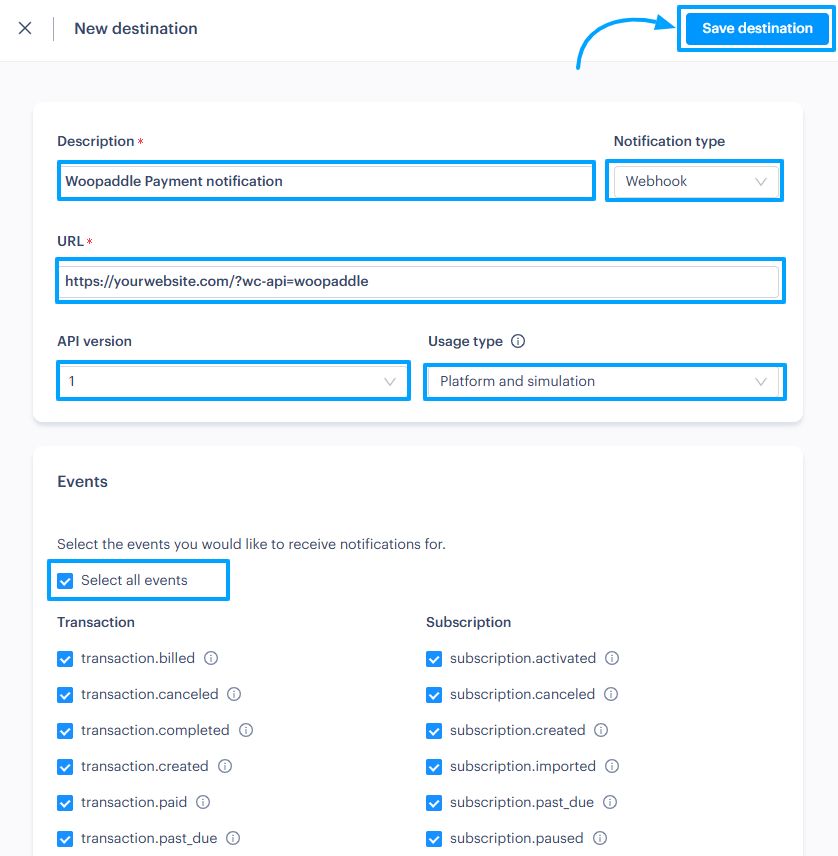
- Lastly, click on the Save Destination button.
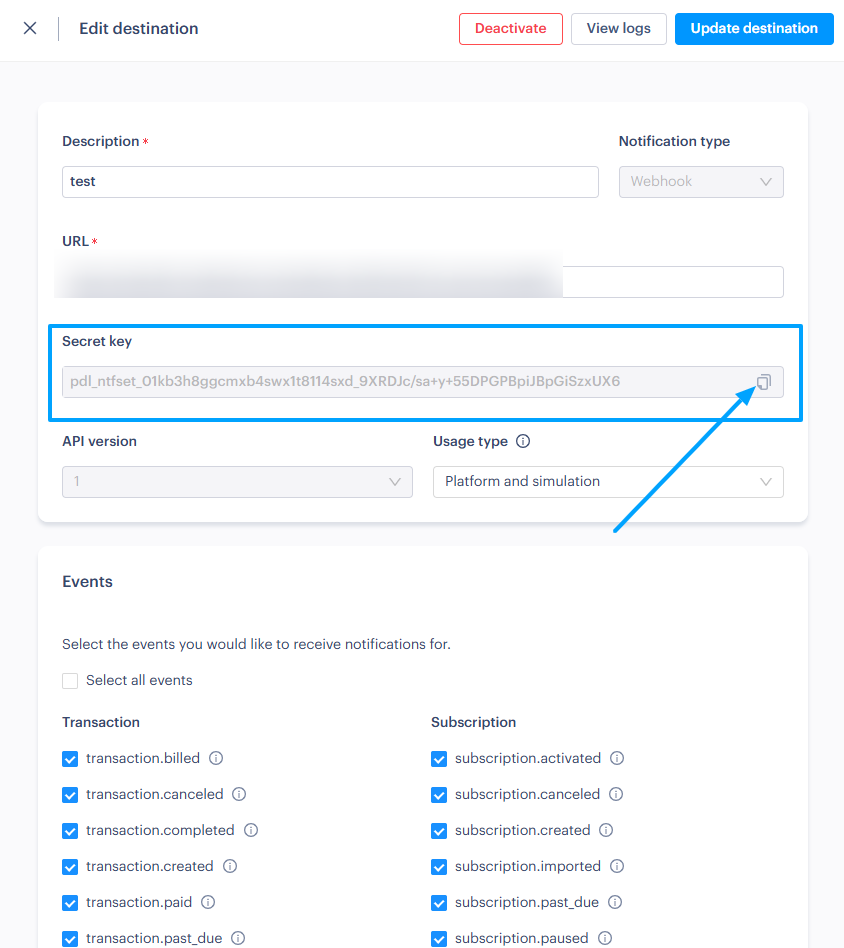
- Now edit the destination, get the Secret ID, and copy it.
Step 4: Activate WooPaddle Checkout
Return to WooPaddle settings in WordPress and follow these steps:
- Paste the API Key, Client-Side Token, and Webhook Secret into their respective fields.
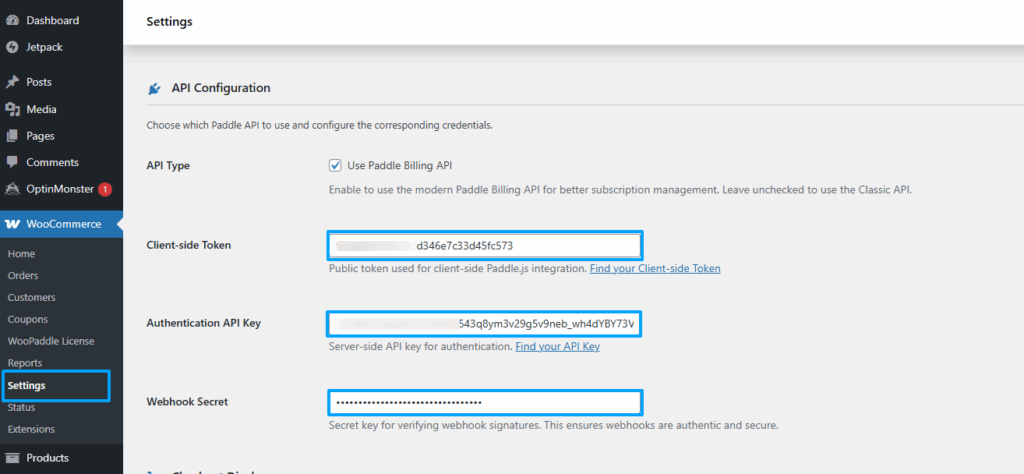
- Under Checkout Type, select Inline Checkout (Embedded Mode) or Popup checkout.
- Save changes.
Your WooCommerce store now supports Paddle checkout, allowing customers to complete purchases directly on your site.
Step 5: Create a Downloadable PDF Product in WooCommerce
Now, create the product to sell PDFs online in WooCommerce through the following steps:
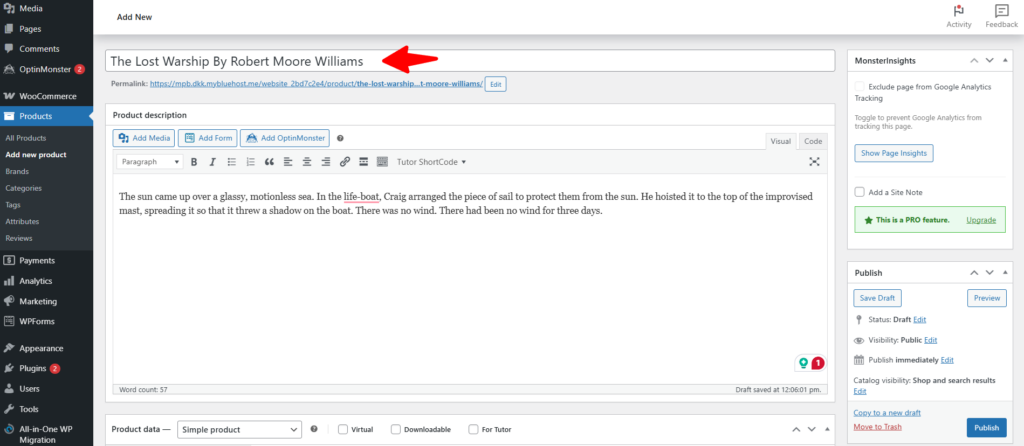
- Go to Products > Add New in your WordPress dashboard.
- Enter a product title, e.g., The Lost Warship By Robert Moore Williams.
- In the Product Data section, check both Virtual and Downloadable.
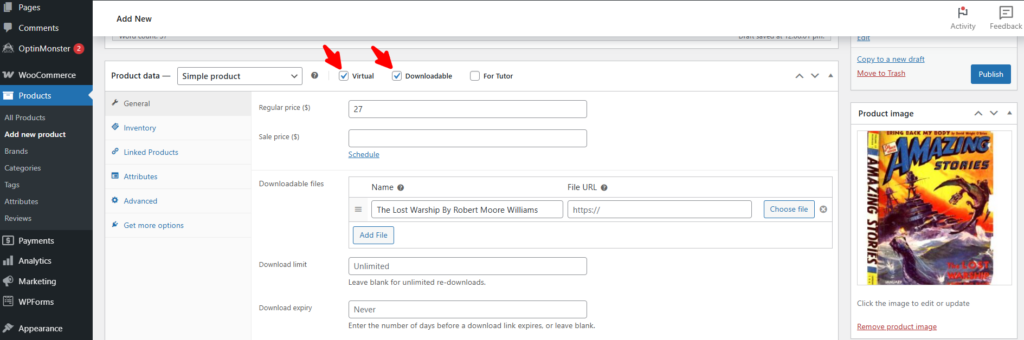
- This ensures the product is treated as a digital file with no shipping required.
- Under Downloadable Files, upload your PDF or paste its file URL.
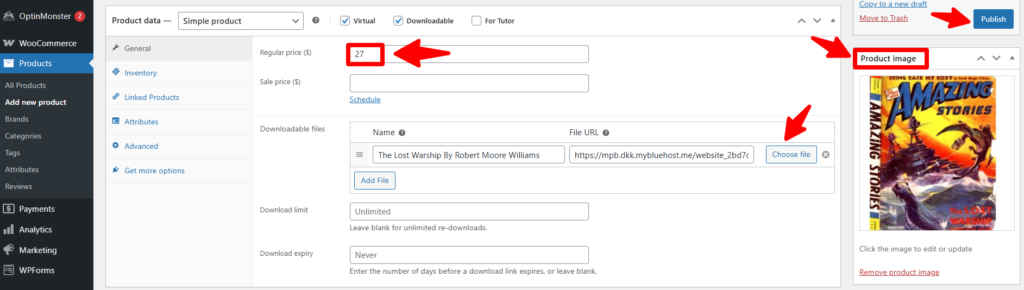
- This is the file customers will receive after purchase.
- Add your selling price (e.g., $27).
- Now, you can set the product image.
- Then, click the Publish button.
Step 6: Test Your Checkout Flow
Before going live, run a test purchase using Paddle Sandbox mode to make sure everything works smoothly. Follow the steps below:
- Go to your store, add the digital product that you recently created.
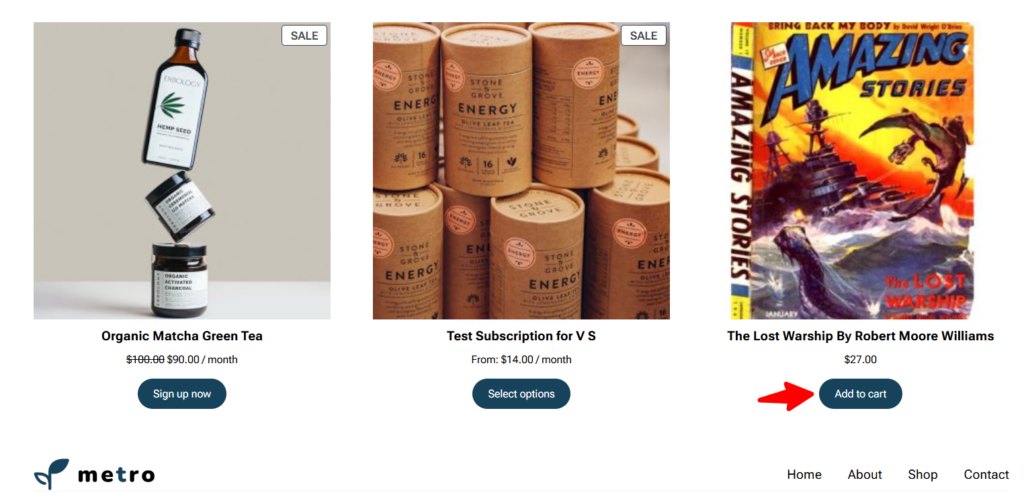
- Proceed to the checkout.
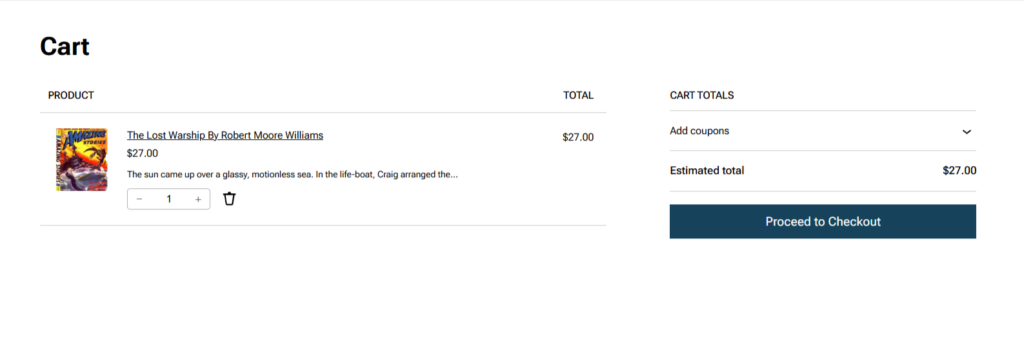
- Click the Proceed to Checkout button.
- Enter your details and use the test credit card number provided by Paddle.
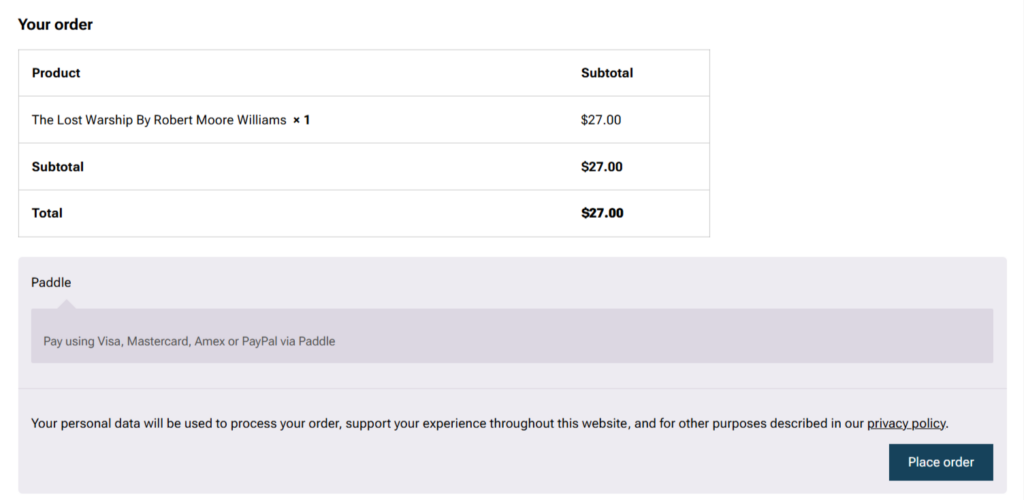
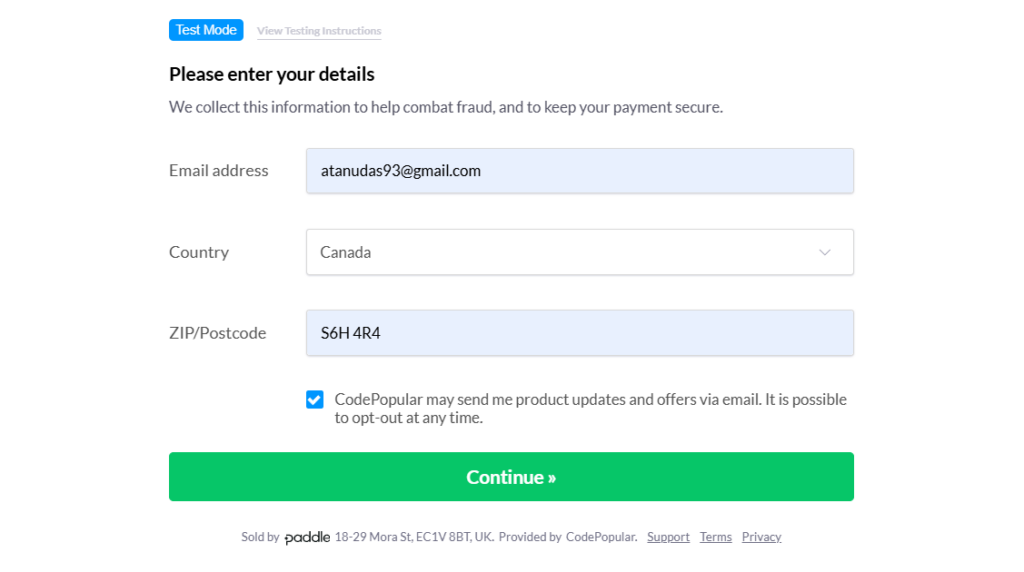
- Now, enter the necessary details and click Continue .
- Now enter your payment details and click the Pay button.
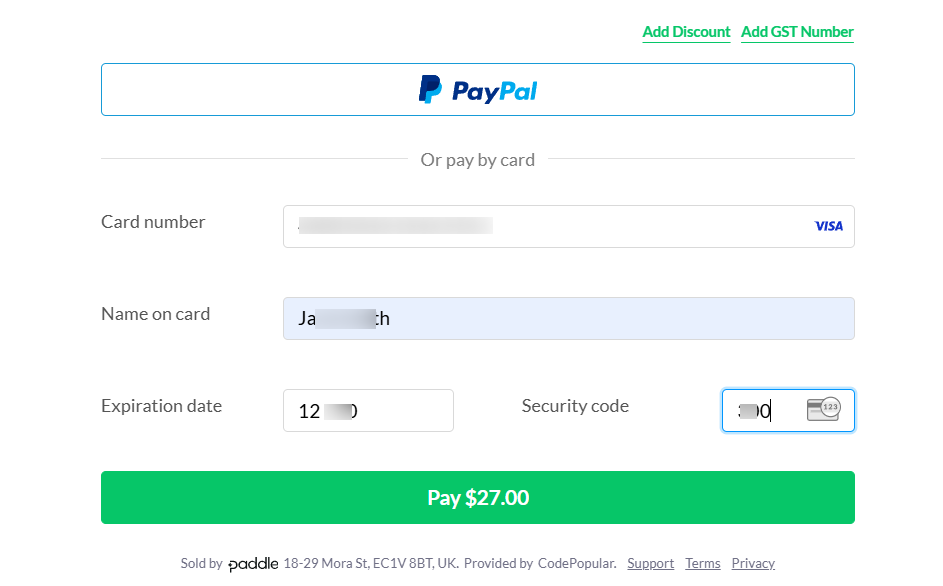
- As you can see, the payment process is complete, and the order has been received.
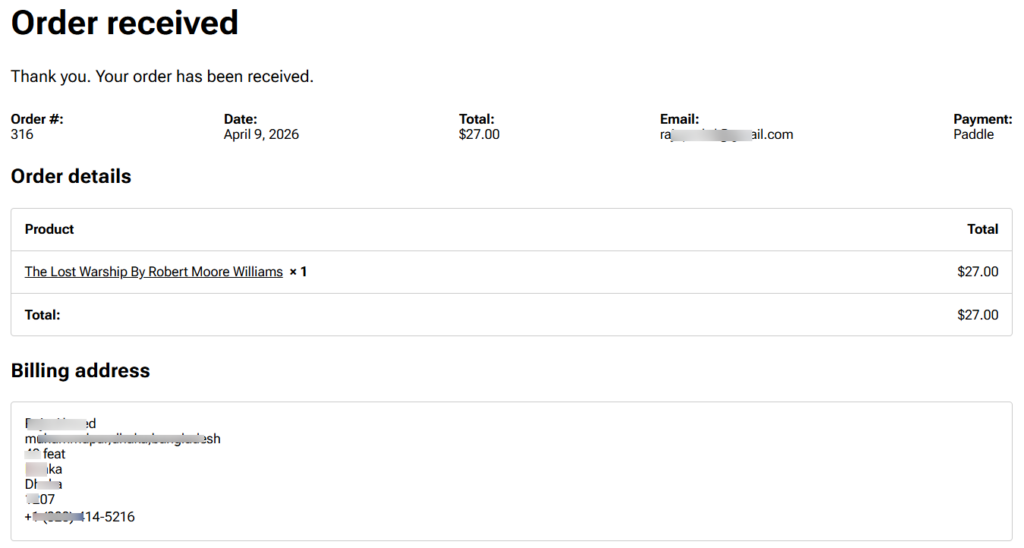
- Now, check whether the customer is getting email notification.
- Plus, check if the PDF file is downloadable.
Optimizing Your Strategy to Sell PDFs Online
Success in digital sales requires more than just a flexible checkout that functions properly. You need to present your product in such a way that builds trust and demonstrates value. Here are some ways to optimize your ways to sell PDFs with Paddle payment:
- Create High Quality Mockups: Use 3D mockup images on the product gallery since the PDF file is an intangible file. This gives the customer a visual representation of what they are buying. Using a clear cover image increases the perceived value of your digital download.
- Secure Your Content: You can limit the number of times a user can download the PDF file in WooCommerce settings. Moreover, you can set an expiration date for the download link for the PDF. These measures help prevent unauthorized sharing of your paid content.
- Include Testimonials: Add ratings on your product page as testimonials. It encourages your early buyers to leave feedback to build credibility for your store.
- Add Order Bumps: When a customer buys one PDF, offer a related PDF at a discount. WooCommerce allows upsells and cross-sells on the product page.
- Consider License Keys: Set license keys when you sell PFS online that has high value. Some sellers issue unique license codes with each purchase. These codes unlock the PDF or verify ownership. WooPaddle supports custom fields for license key generation.
- Track Your Conversion Rates: Paddle provides analytics on cart abandonment, payment methods used, and customer locations. Use this data to improve your pricing and checkout flow.
Final Thoughts on selling PDFs online With Paddle
Building a system to sell PDFs online in WooCommerce is an effective and strategic move for creators. You now have a setup ready to sell an online PDF that manages the technical complexity of global customers.
Here is a sequence to remind you before you sell PDFs online:
- Set up your WooCommerce store with WooPaddle
- Start with one popular PDF product,
- Test the sandbox mode thoroughly,
- Go Live and promote your PDFs.
Your customers get a smooth checkout experience via WooPaddle. On the other hand, you grow your business without worrying about administrative burden or international tax laws.
Now, focus on creating valuable content that is trending and solves specific problems of your audience. Start uploading your files and sharing your expertise with the world today.
Recommended Articles (Optional)
If you enjoyed this article, check out some of our other useful articles, where we share tips and tactics to grow your WooCommerce store and rate it from 0 to 100.
Here are a few you might find interesting:
Start Selling Online Course with Paddle to Automate Your Taxes & Growth, where we’ve shown how you can sell online courses or digital products using the Paddle payment gateway.
How to Integrate Paddle for WordPress: The Fastest Method, where we’ve provided a path to integrate the Paddle payment on your WordPress site using the WooPaddle plugin.
10 Fastest One Page Checkouts for WooCommerce Plugins (2026 Edition), where we have curated a list of the 10 best one-page checkouts for WooCommerce. These plugins reduce the checkout distractions and create a smooth user experience.
WooCommerce Instant Checkout: Sell Faster and Boost Conversions, where we have shown how WooCommerce instant checkout minimizes every extra field, page load, and clicks.

 SHAMIM HASAN