How To Active WooPaddle License Key - CodePopular
Woopaddle License Key Activation Guide
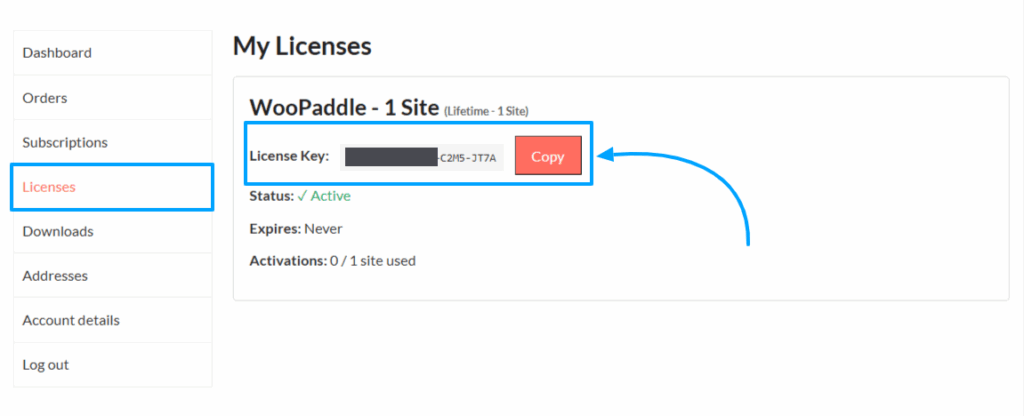
Step 1: Copy Your License Key
- Log in to your account on CodePopular.com.
- From the left sidebar, navigate to My Account → Licenses.
- Locate your WooPaddle License.
- Click the Copy button to copy your License Key.
Step 2: Activate the Key in WordPress
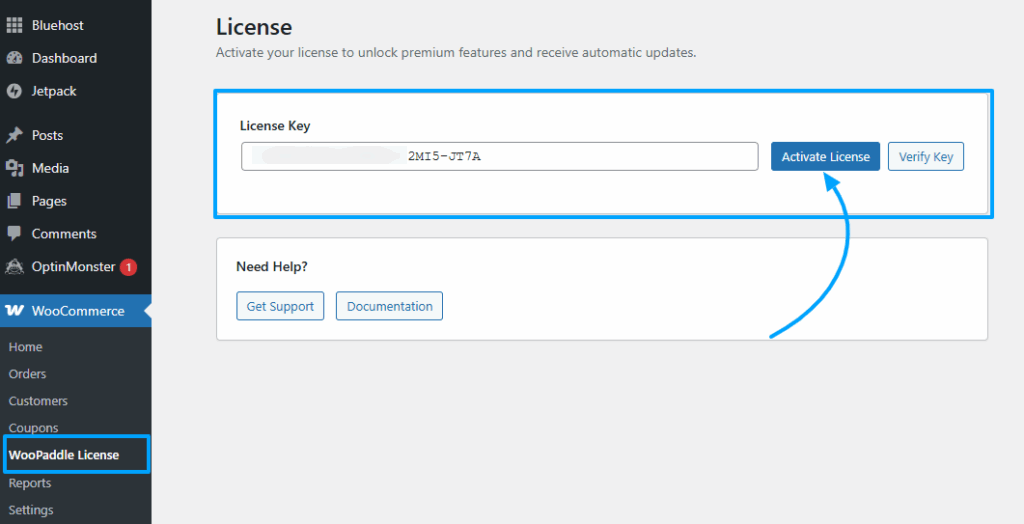
- Log in to your WordPress Admin Dashboard.
- Go to WooCommerce → WooPaddle License from the left-side menu.
- Paste your copied License Key into the License Key field.
- Click Activate License to complete the activation.
- After activating the license key, all premium features and automatic updates are enabled.
Step 2: Check License Status (Optional if you want to check)
After activating your WooPaddle license key, you can easily verify its current status at any time. This ensures your license remains valid, active, and eligible for automatic updates.
- Log in to your WordPress Admin Dashboard.
- Go to WooCommerce → WooPaddle License from the left-side admin menu.
- On the same page where you activated your license, click the Check Status button.
What You Will See
After clicking Check Status, the system will instantly retrieve the current license information. You will see the following details:
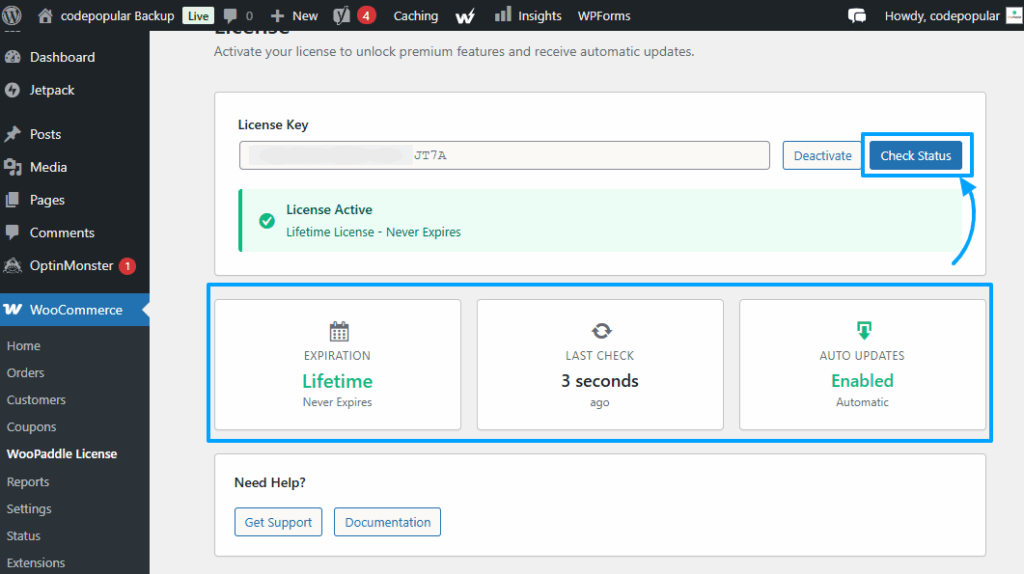
✅ License Status
Shows whether your license is active, expired, or invalid.
For active lifetime licenses, you will see:
License Active – Lifetime License (Never Expires)
🗓️ Expiration
Displays your license type and expiration date.
Example:
- Lifetime – Never Expires
- Or the remaining validity if it’s a yearly license.
🔄 Last Check
Displays how long ago the status was last verified.
Example:
- 3 seconds ago
- 2 minutes ago
⚙️ Auto Updates
Shows whether automatic updates for the plugin are enabled.
Example:
- Enabled – Automatic
- Or disabled if the license is inactive.
Why Check License Status?
Checking the license status helps you:
- Confirm that your license is active
- Ensure automatic updates are functioning
- Troubleshoot any activation issues
- Verify expiration or renewal needs (for non-lifetime licenses)
 SHAMIM HASAN