How To Install Woopaddle - CodePopular
WooPaddle – Installation Guide
We offer complete installation support, so you don’t have to spend time reading documentation or handling the setup process yourself. If you can provide temporary access to the website where you want the Paddle Checkout plugin installed, our team will assist you immediately and handle the full setup for you.
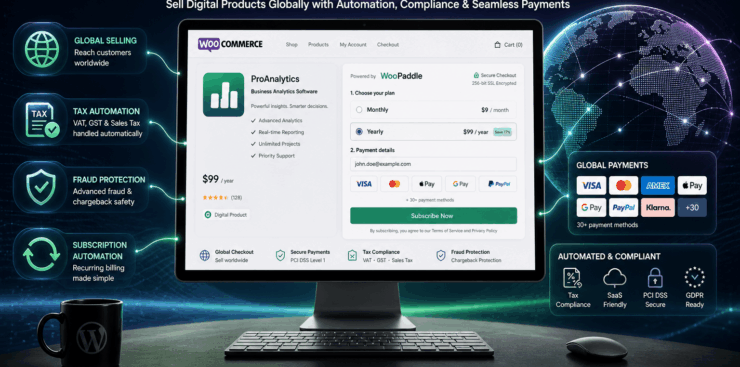
WooPaddle is a powerful payment gateway plugin that integrates Paddle.com with WooCommerce, allowing you to accept payments via credit cards and PayPal through Paddle’s secure checkout system.
Requirements
- WordPress: Version 5.0 or higher
- WooCommerce: Version 3.0 or higher
- PHP: Version 8.2 or higher
- Paddle Account: Active Paddle.com vendor account
- Supported Currencies: USD, GBP, or EUR (your WooCommerce store currency must be one of these)
Installation Steps
Step 1: Download the Plugin
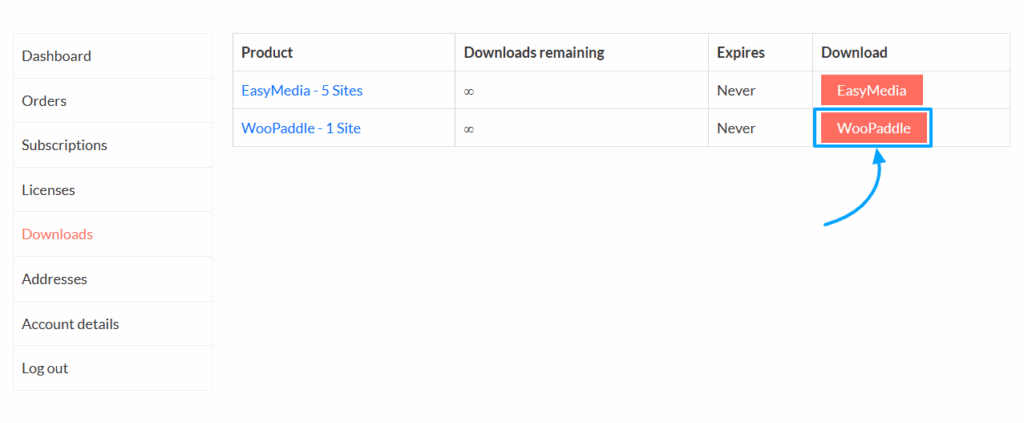
- Purchase and download the WooPaddle plugin from CodePopular.com -> My Account -> Download
- You will receive a ZIP file containing the plugin
Step 2: Install via WordPress Admin
- After downloading the plugin
- Log in to your WordPress admin dashboard
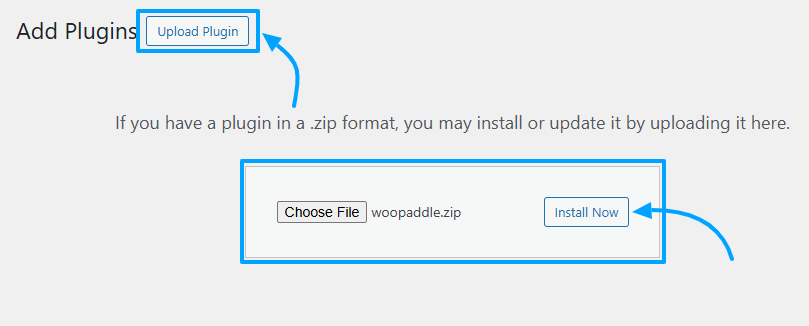
- Navigate to Plugins → Add New
- Click the Upload Plugin at the top of the page
- Click Choose File and select the
woopaddle.zipThe file you downloaded - Click Install Now
- After installing the plugin, you can activate it
OR
Install via FTP (Alternative Method)
- Extract the
woopaddle.zipfile to your computer - Connect to your website via FTP using an FTP client (FileZilla, etc.)
- Navigate to
/wp-content/plugins/directory - Upload the extracted
woopaddlefolder to this directory - Go to your WordPress admin dashboard
- Navigate to Plugins → Installed Plugins
- Find WooPaddle – WC Paddle Payment Gateway and click Activate
Step 3: Active WooPaddle Plugin
Once the plugin has been installed:
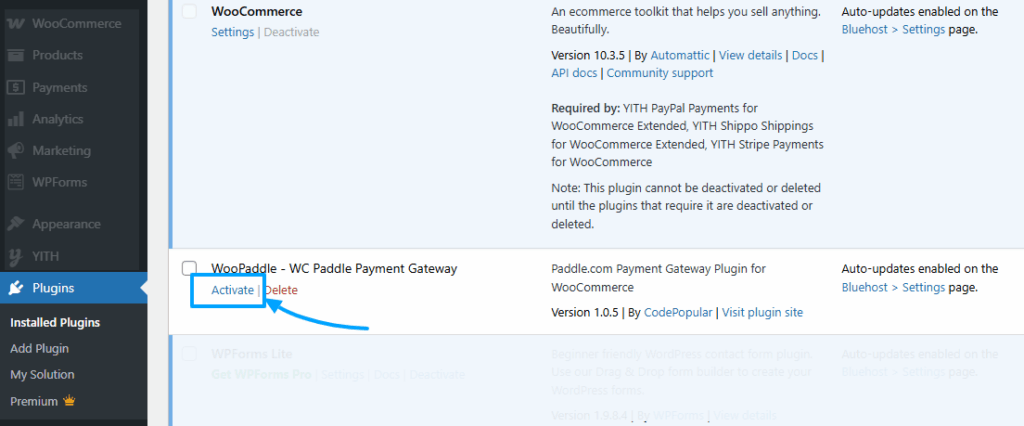
- Navigate to the Plugins section in your WordPress dashboard.
- Look for WooPaddle in the installed plugins list.
- Click on Activate to turn the plugin on.

 SHAMIM HASAN